Bank details for direct deposit
How to add or update your bank details in My Profile, upload a void cheque or direct deposit form, and what to do if you can't enter your bank details.
What you need
- Your bank's name.
- Your Transit Number (5 numbers) and Account Number (7 to 15 numbers).
- A void cheque or a direct deposit form from your bank. This can be a photo or a PDF file.
You can find your transit and account numbers on a cheque, in your bank's app, or on a direct deposit form from your bank.
Add or update your bank details
Open My Profile
At the top right of the screen, tap the circle with your initials, then tap My Profile.
Find Direct Deposit
Scroll down to the Direct Deposit box.
Start
Tap the white Add button at the top right of the box. If you already saved bank details, the button says Update.
Choose the country
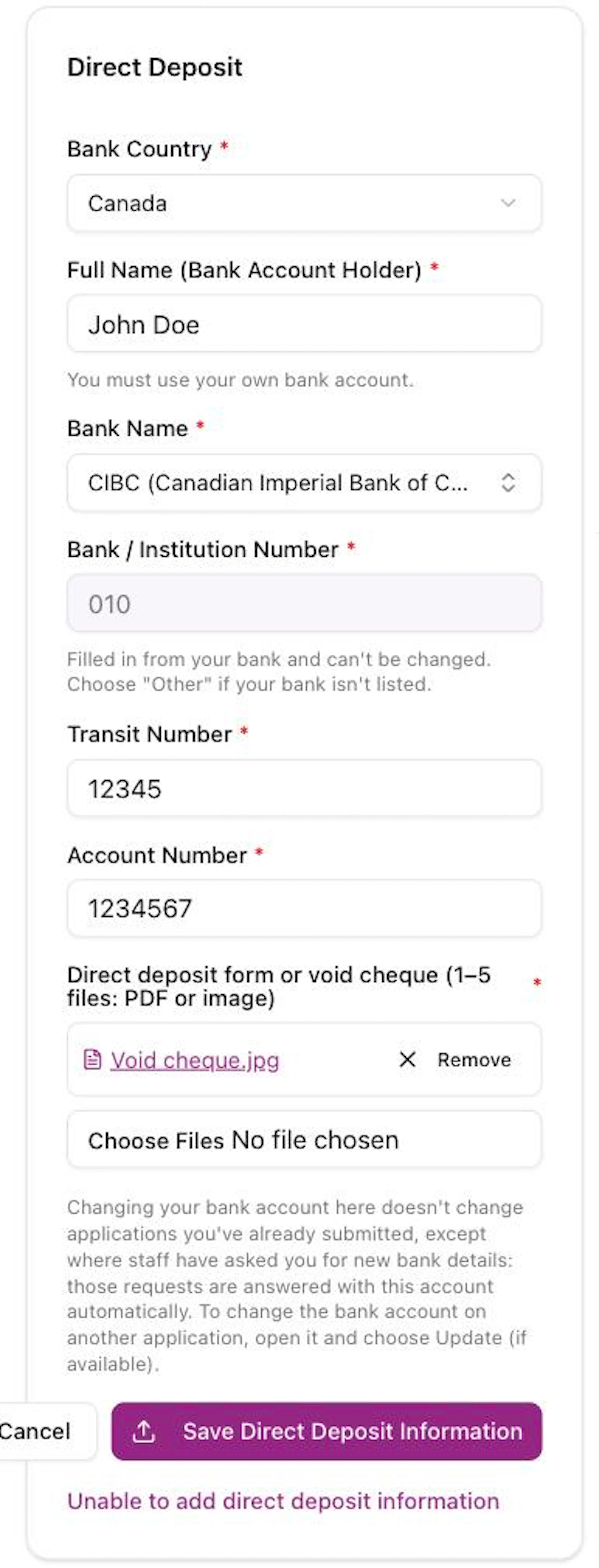
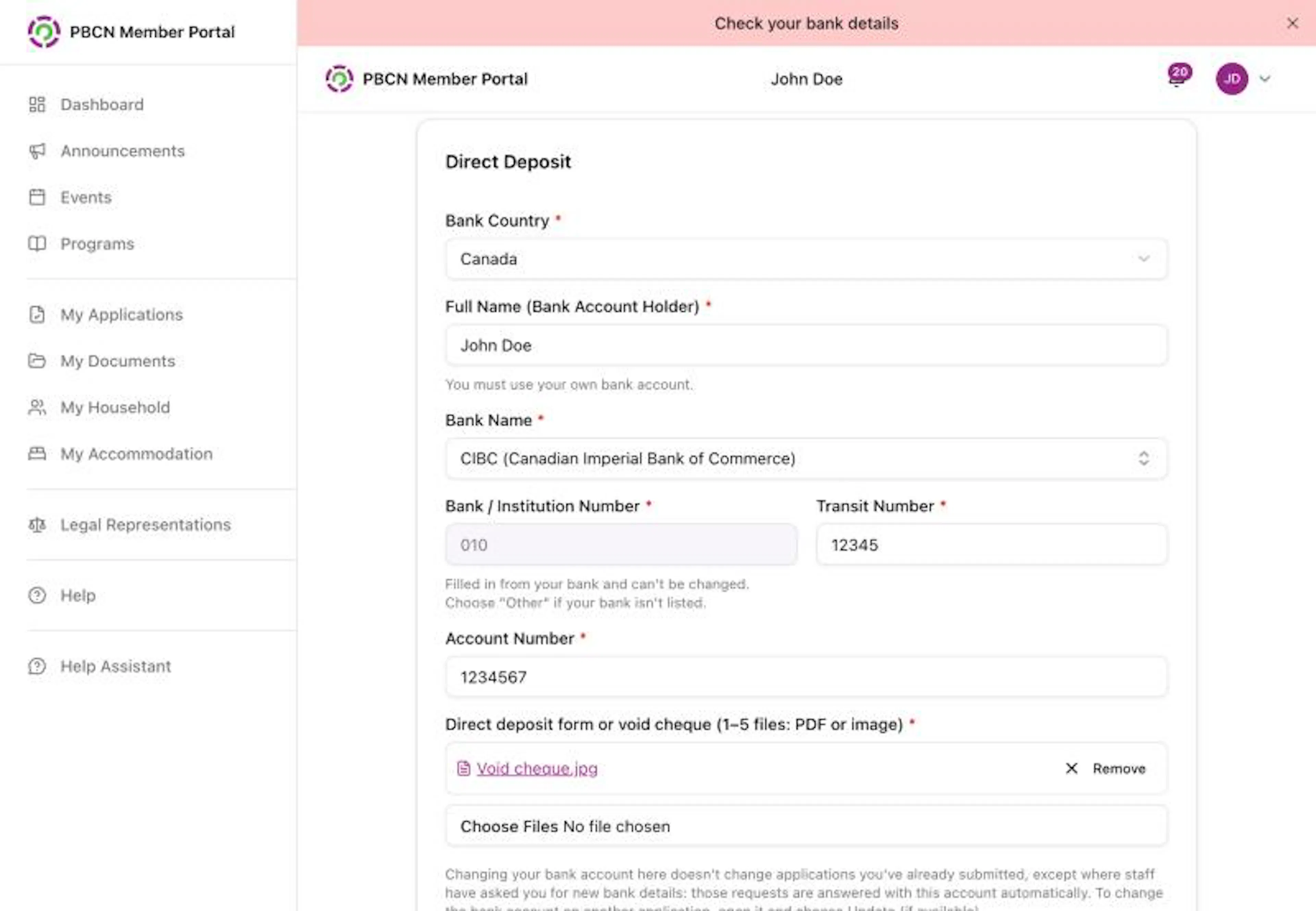
Tap the box under Bank Country * and choose Canada (or International for a bank outside Canada).
Type the account holder's name
Tap the box under Full Name (Bank Account Holder) * and type your full name the way it shows on your bank account.
The account must be your own bank account.
Choose your bank
Tap the box under Bank Name * that says Search and select your bank. Start typing your bank's name, then tap it in the list.
The Bank / Institution Number fills in by itself.
If your bank is not in the list, tap Other - my bank isn't listed, then type your bank or credit union name in the box that appears.
Type your transit number
Tap the box under Transit Number * and type the 5 numbers.
Type your account number
Tap the box under Account Number * and type your account number (7 to 15 numbers).
Add your void cheque or form
Under Direct deposit form or void cheque (1–5 files: PDF or image) *, tap Choose Files (or Browse). Pick the photo or PDF from your phone or computer.
To take a photo with your phone, choose Camera or Take Photo when your phone asks.
The file name shows in a list when it is added. To take one off, tap Remove next to it. You can add up to 5 files.
Save
Tap the purple Save Direct Deposit Information button at the bottom.
A message pops up: Direct deposit information saved.
Fix common mistakes
If something is missing or wrong when you tap Save Direct Deposit Information, a message pops up. Fix the box it names, then save again.
| Message | What to do |
|---|---|
| Full Name (Bank Account Holder) is required | Type the account holder's name. |
| Bank Name is required | Choose your bank, or choose Other and type its name. |
| Transit Number must be exactly 5 digits | Type all 5 numbers of your transit number. |
| Account Number must be 7 to 15 digits | Check your account number and type it again, with no spaces. |
| Please upload a void cheque or direct deposit document | Add at least one photo or PDF of your void cheque or form. |
| You can upload up to 5 files. | Tap Remove next to a file before adding another. |
What changes when you update
Changing your bank details in My Profile does not change applications you already sent, except where staff asked you for new bank details. To change the bank account on one application, open it in My Applications and choose Update (if you see it).
If you can't add your bank details
Under the bank form, tap the purple words Unable to add direct deposit information. Then tap the box that says Select a reason and choose one:
Never send your bank account number by email, text or chat. Only type it in the bank form in the portal.