When staff ask for more information
How to answer an information request, update your answers when staff ask, and update your bank details for an application.
How you know staff asked you something
- You get a notification. Tap it to open the application.
- In My Applications, the application shows a red Info Requested label.
- On the application's page, a red box says Action Required.
Staff can ask in three ways. The steps are a little different for each.
Answer a request for information
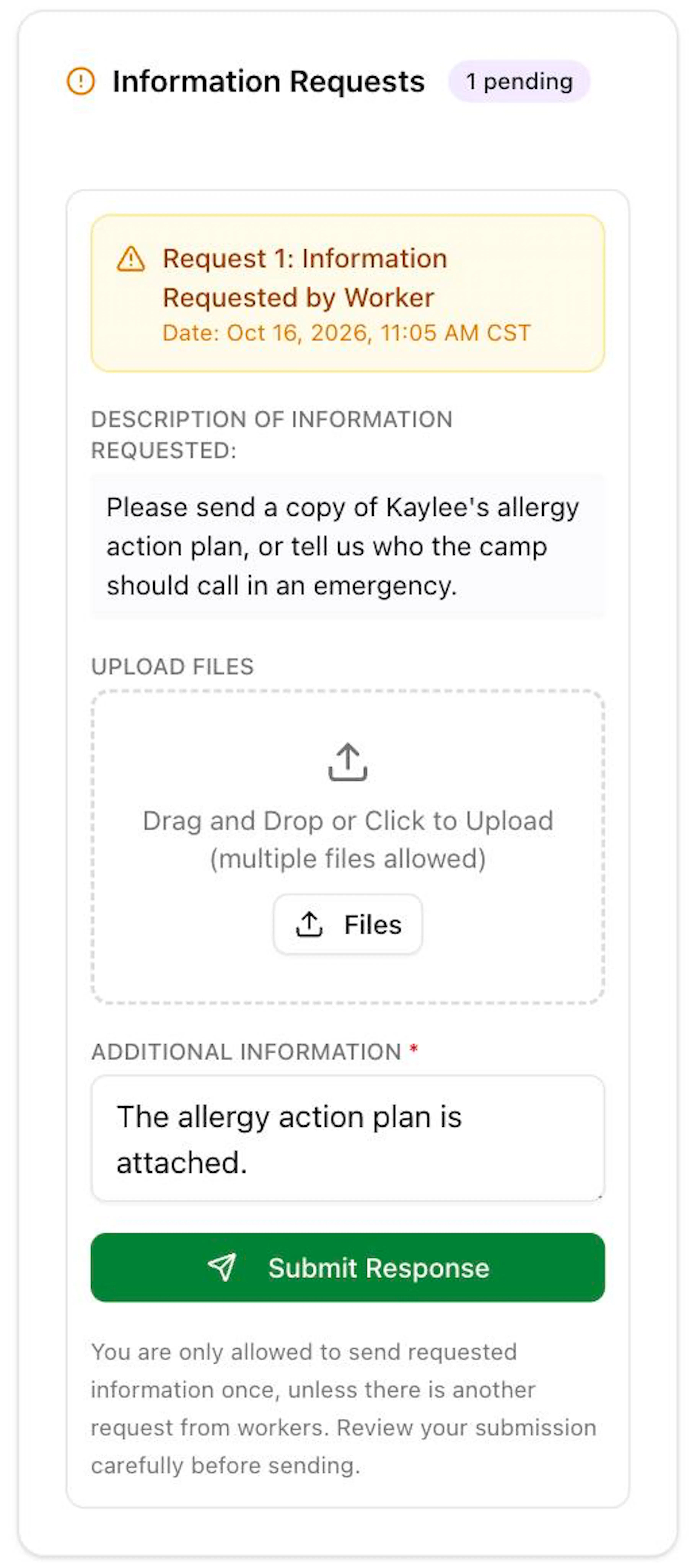
The request shows Information Requested by Worker and a date.
Open the request
Open the application from My Applications.
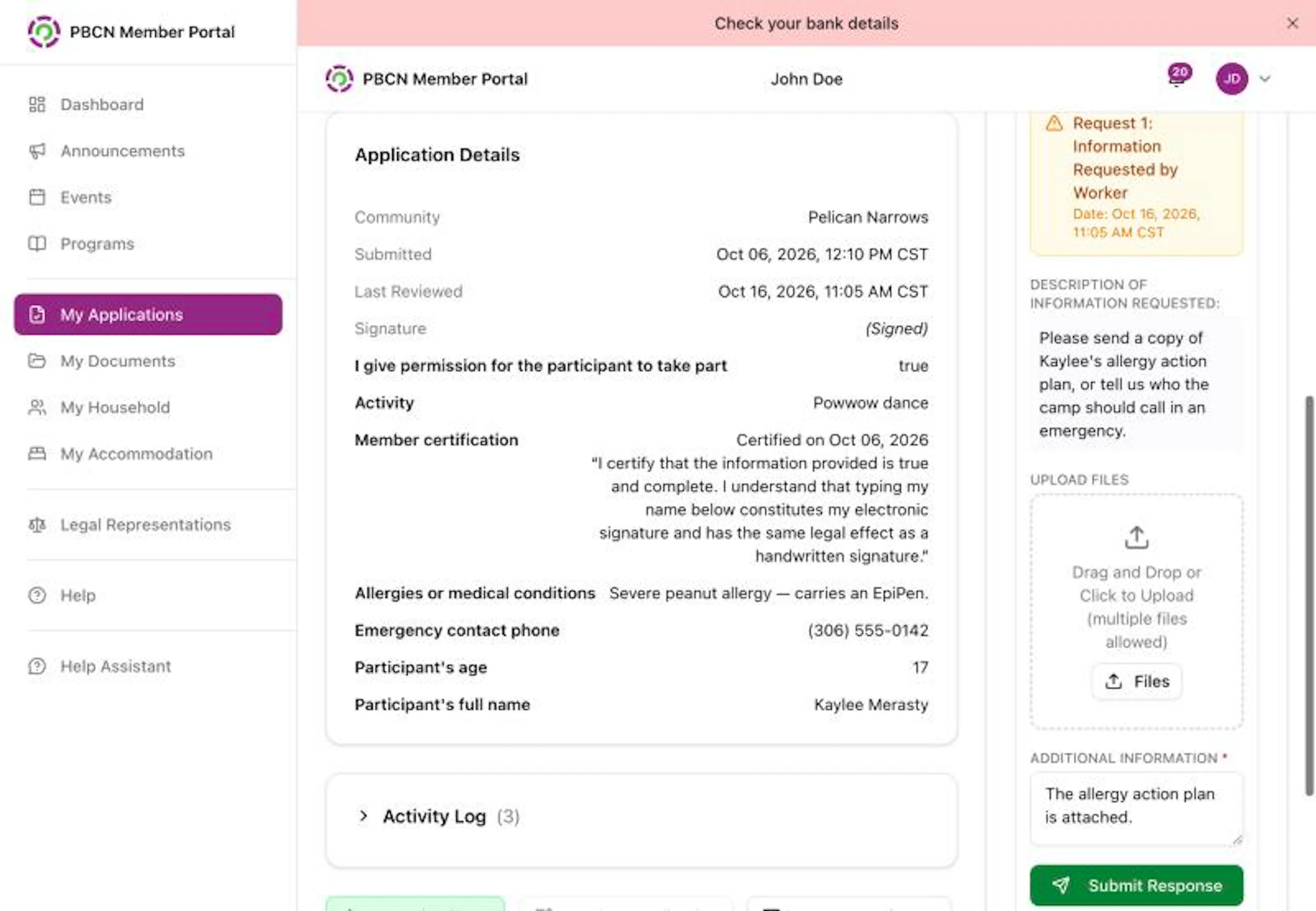
- On a computer: the requests are in the Information Requests box on the right side of the page.
- On a phone: tap the Information Requests button near the top of the page. A red number shows how many need an answer.
Read the question
Read the text under Description of Information Requested:.
Add files (if asked)
Under Upload Files, tap the white Files button (or the dashed box). Choose the photo or file from your phone or computer. You can add more than one file.
Each file shows in a grey box with its size. To take one off, tap the X next to it.
Type your answer
Tap the box under Additional Information * (it says Enter any additional details here...) and type your answer.
Send it
Tap the green Submit Response button.
A message pops up: Response sent successfully. The request now shows Response Submitted.
You can send your answer to each request only once. Check your answer and files carefully before you tap Submit Response.
If Submit Response doesn't work, a message says Please fill in: Additional information. Type something in the Additional Information box and try again.
If you see This request has been updated. Please review it again before you submit., read the question again, then tap I've reviewed it and send your answer.
Update your answers when staff ask
The request shows Update Answers Requested by Worker. Staff unlock some of your answers (or all of them) so you can change them.
Read the note
Read the text under Note from staff. Under Answers to update you see a list of the questions you can change. If it says You can update all of your answers, every question is unlocked.
Open the form
Tap the purple Update answers button. A box opens with the title Update answers. It shows only the questions staff asked you to update.
Change your answers
Change the answers that need changing. Leave the others as they are.
Confirm
At the bottom, tap the square next to I confirm these changes are true and complete. *
Save
Tap the purple Save updated answers button.
A message pops up: Your answers were updated. The request now shows Response Submitted.
You can send your updates once for each request. If you close the box before saving, the button changes to Continue updating answers so you can finish later.
Update your bank details for an application
If staff ask for new bank details, the request has a bank form in it.
- Fill in the bank form. See Bank details for direct deposit for help with each box.
- Tap the purple Update Direct Deposit Information button.
- A message pops up: Direct deposit information updated.
Saving new bank details in My Profile also answers bank requests that are waiting on your applications.
If the request is for someone else to answer
Some requests can only be answered by the person who applied. If you see This request must be completed by the household member who submitted the application. or You don't need to do anything., you don't need to answer it.
If a request was removed
If you see Removed by Staff and This request was removed by staff and no longer needs an answer., you don't need to do anything.