My Documents
How to find, preview and download your files in My Documents.
What is in My Documents
My Documents keeps the files linked to your account in one place. This includes files you added to applications, profile and household requests, your bank documents, and PDF copies of your applications and Legal Representations. Staff may also add files for you.
You can look at and download files here. To add a new file, add it where it is asked for, such as in an application or an information request. It then shows up here.
Open My Documents
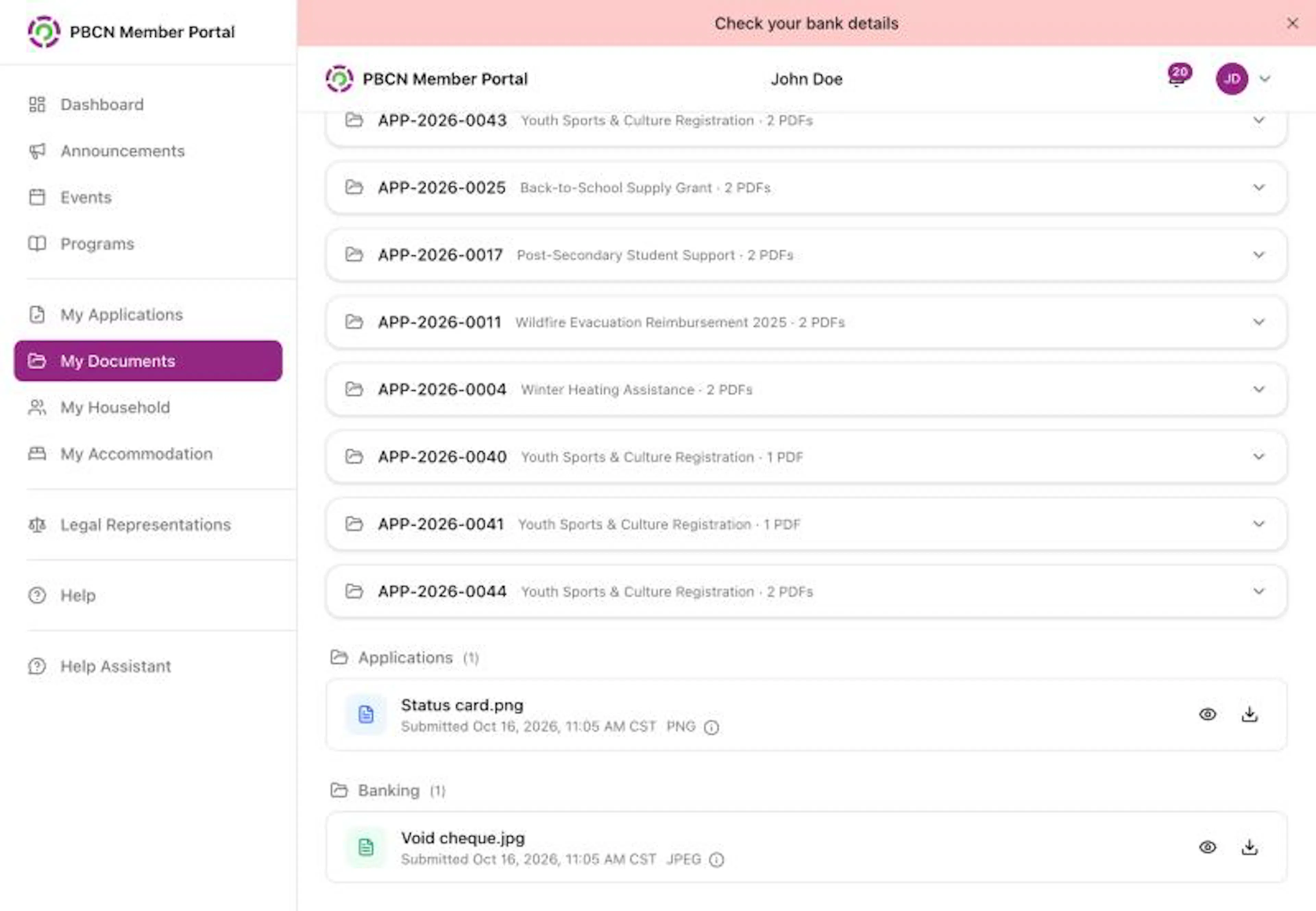
- On a computer: in the menu on the left, click My Documents.
- On a phone: tap Documents in the bar at the bottom of the screen.
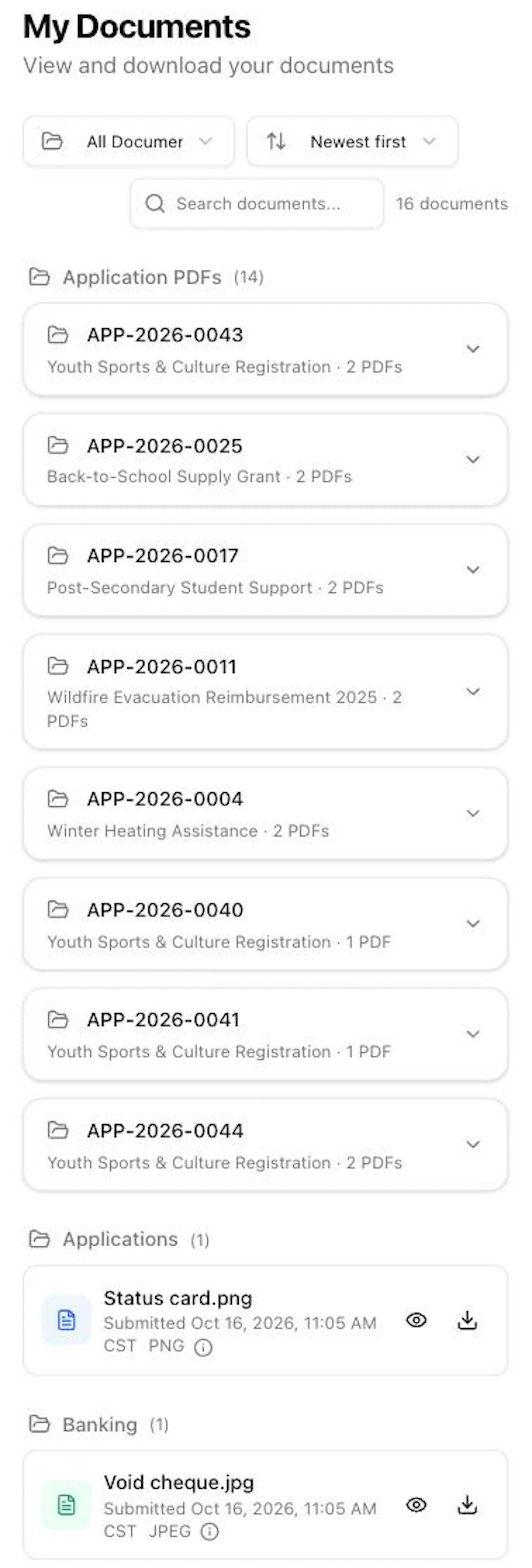
The page says View and download your documents.
Find a file
Look at the folders
Files are grouped into folders, for example Applications, Application PDFs, Banking, Household, My Uploads and Uploaded by Staff. The number next to each folder name shows how many files are in it.
Show one folder (optional)
Tap the box at the top left that says All Documents and choose a folder from the list.
Change the order (optional)
Tap the box next to it to choose Newest first, Oldest first or Name A–Z.
Search (optional)
Tap the box that says Search documents... and type part of the file name.
Open an application's PDFs
In Application PDFs, each application has its own section. Tap the application number to open it and see its PDF copies.
Look at or download a file
Each file has small icons on the right side of its row:
- Tap the eye icon to preview the file.
- If you see a down arrow icon, tap it to download the file to your phone or computer.
If you see Preview unavailable for this file type., download the file instead and open it on your phone or computer.
A file marked Live copy, shows the application as it is now always shows your application's latest details.
If you see No documents and You don't have any documents yet., no files are linked to your account yet.
If a file you expected is missing, contact your band office.