What is a household?
What a household means in the portal, how to open My Household, and which household request to choose.
What a household is
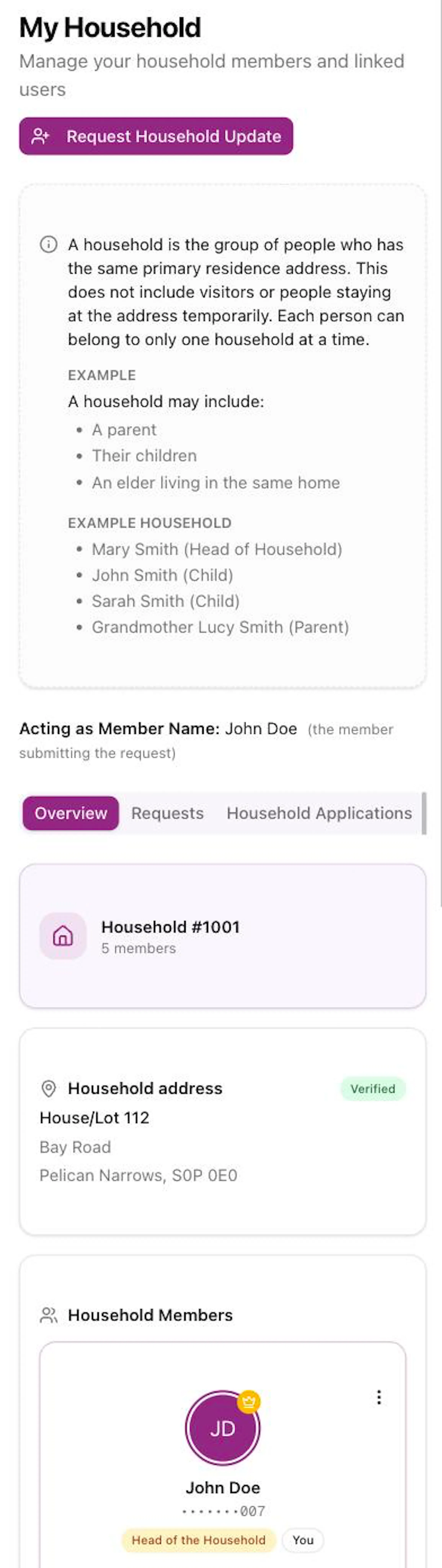
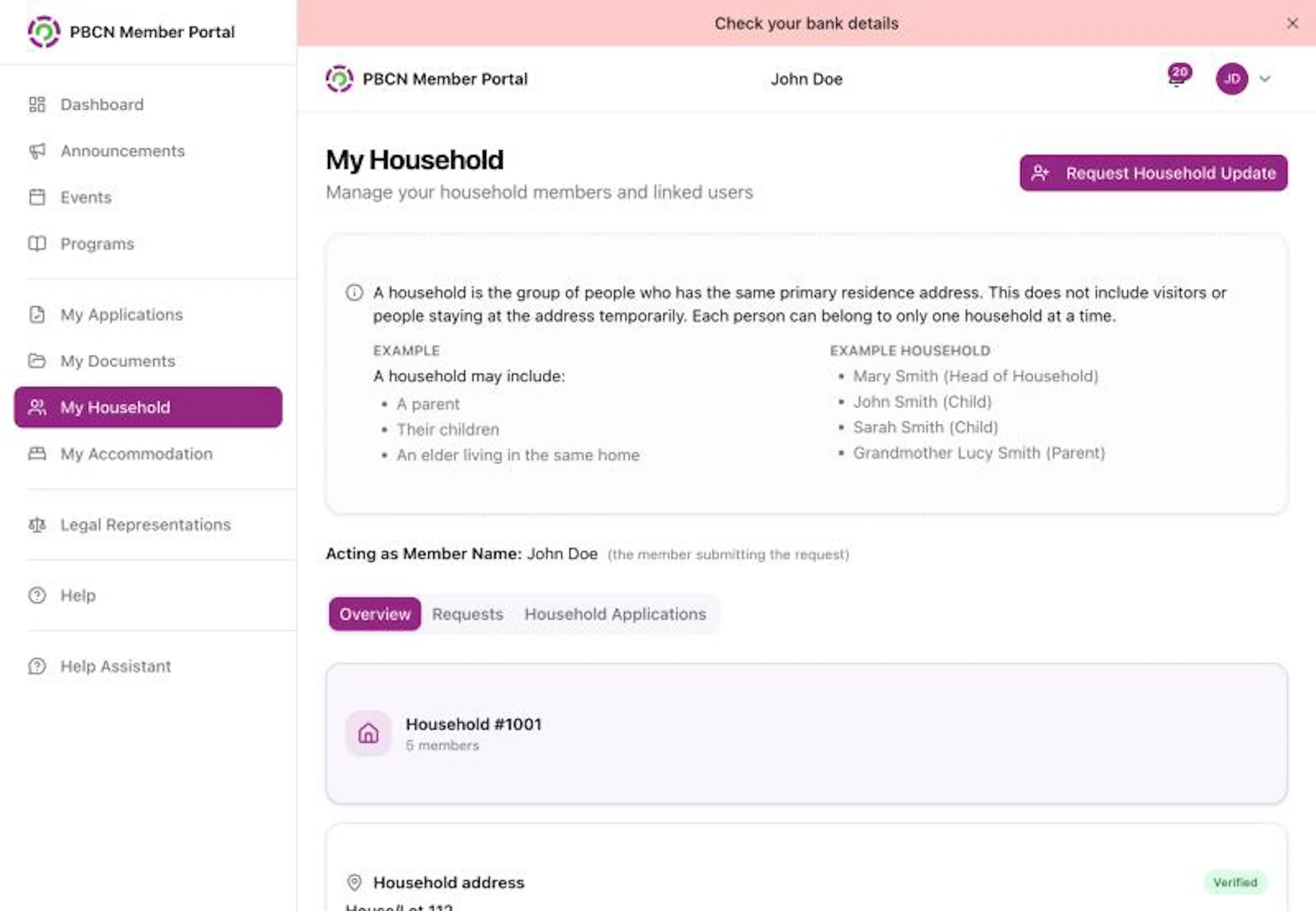
A household is the group of people who live at the same main home address. It does not include visitors or people staying there for a short time. Each person can belong to only one household at a time.
For example, a household may include a parent, their children, and an elder who lives in the same home.
One person in each household is the Head of Household (applicant). For household programs, only the Head of Household can send the application.
Open My Household
- On a computer: in the menu on the left, click My Household.
- On a phone: tap More at the bottom right of the screen, then tap My Household.
What you see on the page
The page has three buttons near the top that switch what is shown below them:
- Overview: your household number (for example Household #123), your Household address and the Household Members. The Head of Household is marked Head of the Household.
- Requests: the household changes you asked for, and their status. See Follow your household requests.
- Household Applications: household applications connected to your account.
Ask for a household change
All household changes are requests. Staff check each request before anything changes.
Open the list of requests
At the top right of My Household, tap the purple Request Household Update button. A list opens.
Choose what you need
Tap the request that fits. Use the table below to choose.
| You want to... | Tap this |
|---|---|
| Start a household, or move out of your household to a new home | Request to create a new household |
| Move in to someone else's household | Request to join an existing household (or Request to join another household) |
| Add people who live with you | Request to Add Household Members |
| Tell us your whole household moved | We moved (change household address) |
| Choose a new Head of Household | Request to Change Head of Household |
| Fix how two people are related | Request to Change Relationship |
| Take someone off your household | Request to Remove a Household Member |
| Take yourself off your household | Request to Exit Household (Remove Yourself) |
Some choices are grey when they can't be used. For example, if your household has only one person, you see Your household needs at least two members before you can change the Head of Household.
You can also tap the three dots at the top right of a person's card to choose Request Head Change, Request Relationship Change, Request Removal or Request to Exit Household.
If you are the only member of your household, you can't simply leave it. You see You're the only member of this household. To leave, request to join another household or create a new one.
Change the Head, a relationship, or remove someone
These requests open a small box on the same page.
Choose the people
Fill in the boxes with a red star *. For example, for a new Head, tap the box under New Head of Household * that says Select household member, and tap a name.
For a relationship, choose a Person *, what they is the * (for example Child), and of * which person.
Add a reason or note
If you are removing someone or exiting, type a reason in the Reason * or Exit Reason * box. For other requests, you can add notes in Notes for Staff.
Add documents (optional)
You can add supporting documents, such as a letter.
Send it
Tap the purple Submit Request button.
A message pops up that starts with Request submitted.
If a red message appears in the box, it tells you what is missing. For example: "Choose the new Head of Household." or "Enter your reason for exiting the household." Fix it and tap Submit Request again.
For questions about your household, contact your band office.