Security settings
How to turn sign-in codes on or off, use an authenticator app, save backup codes, see and sign out your signed-in devices, and change your password.
Open the Security page
Open your account menu
At the top right of the screen, tap the circle with your initials (for example JD).
Tap Security
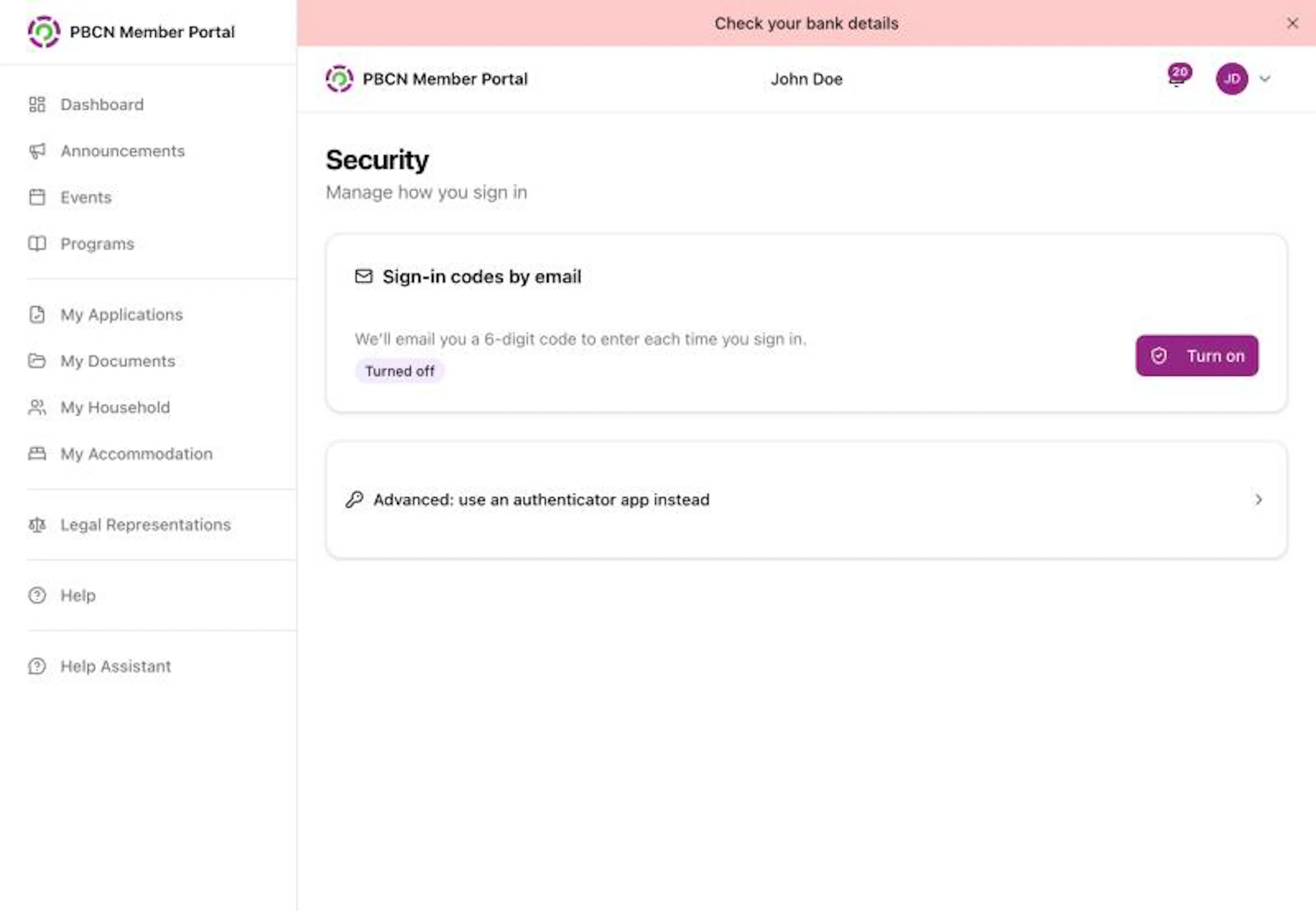
Tap Security in the menu. The Security page opens. It says Manage how you sign in.
Turn on sign-in codes by email
With sign-in codes on, the portal emails you a 6-digit code each time you sign in. This keeps your account safer, even if someone learns your password.
Find the box
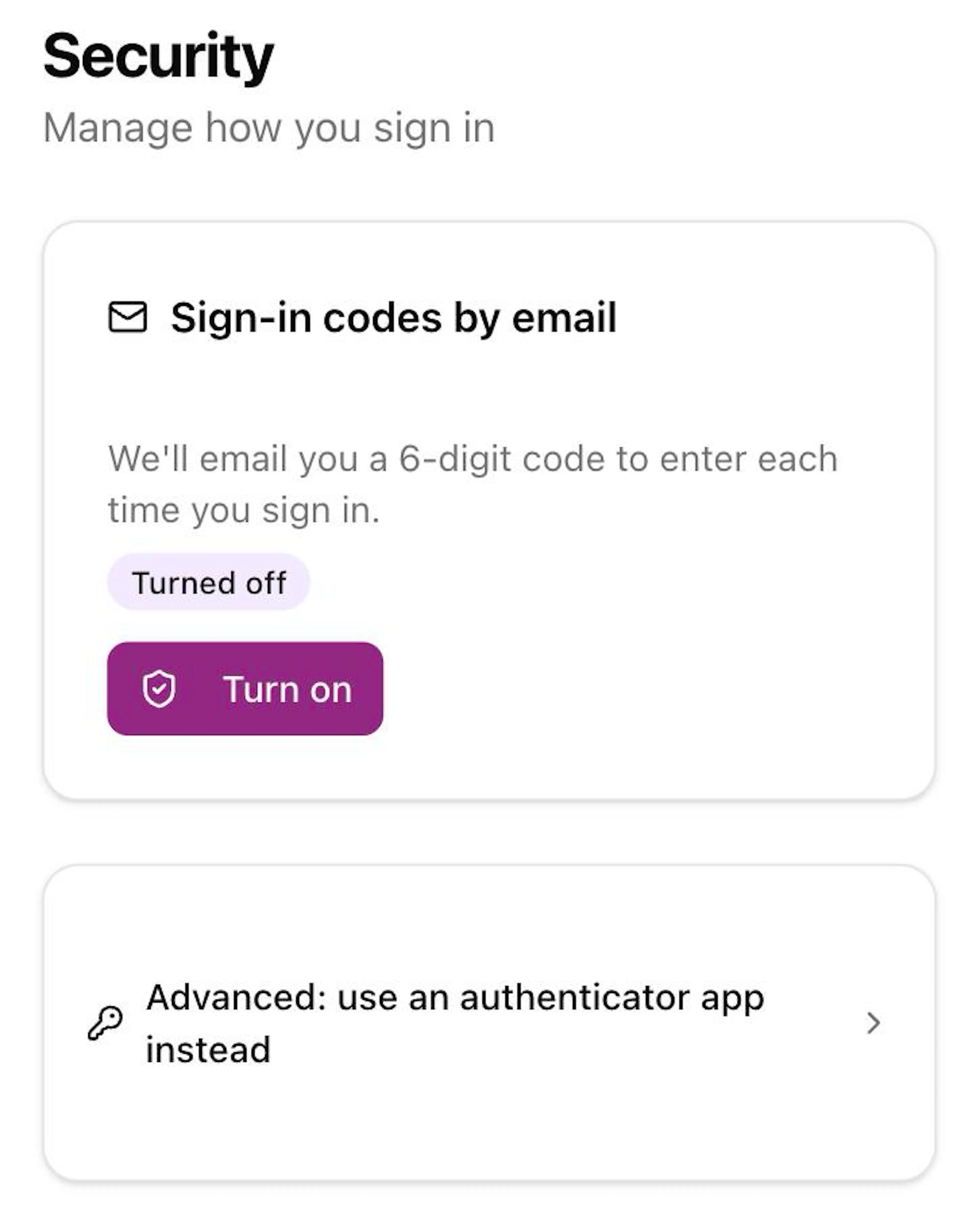
Find the box called Sign-in codes by email. A label shows Turned off.
Tap Turn on
Tap the purple Turn on button. A box opens with the title Confirm your password.
Type your password
Tap the box under Current Password * and type the password you use to sign in.
Confirm
Tap the purple Turn on button in the box.
A message pops up: Sign-in codes are on. We'll email you a code each time you sign in. The label now shows Turned on.
If you see "That password isn't right. Please try again.", type your password again carefully.
Turn off sign-in codes
- In the Sign-in codes by email box, tap the white Turn off button.
- Type your password in the Current Password * box.
- Tap Turn off. A message pops up: Sign-in codes are off.
If you are a Legal Representative, you need sign-in codes turned on before you can act for someone. See Act for someone.
Use an authenticator app instead (optional)
This is for people who already use an app like Google Authenticator, Authy or 1Password. Most people can skip it.
Open the option
Tap Advanced: use an authenticator app instead. More text appears under it.
Start setup
Tap the white Set up authenticator app button.
Confirm your password
Type your password in the Current Password * box and tap the purple Continue button.
Scan the QR code
A box opens with the title Scan the QR code. Open your authenticator app and scan the square picture. If you can't scan it, type the code shown under Can't scan? Enter this code manually: into your app.
Type the code from your app
Tap the box under Authentication Code * and type the 6 numbers your app shows. Tap the purple Verify and turn on button.
Save your backup codes
You see Save your backup codes. Tap Copy or Download .txt and keep the codes somewhere safe. Each code works only once, and this is the only time they are shown. Then tap Done.
To get new backup codes later, open Advanced: use an authenticator app instead, tap Generate new backup codes, type your password and tap Generate codes. Your old backup codes stop working.
See your signed-in devices
The Signed-in devices box on the Security page lists every phone and computer that is signed in to your account right now.
Each device shows:
- The browser and the kind of device, for example Chrome on Windows.
- IP address: a number that belongs to the internet connection it used.
- Signed in: when it signed in, for example Oct 26, 2026, 3:22 PM CST.
- Last active: when it was last used.
The phone or computer you are using now is at the top with a purple This device label.
On a phone, each device's details are stacked, with its Sign out button underneath. On a computer, the Sign out button is on the right of each device.
Sign out one device
Find the device
In the Signed-in devices box, find the device you want to sign out.
Tap Sign out
Tap the white Sign out button for that device. A box opens with the title Sign out this device?
Confirm
Tap the red Sign out button in the box.
A message pops up: That device is signed out. The device is removed from the list.
The device you are using now has no Sign out button. To sign out of it, tap the circle with your initials at the top right, then tap Log out.
Sign out of all other devices
Tap Sign out of all other devices
Under the list, tap the red Sign out of all other devices button. A box opens with the title Sign out of all other devices?
Confirm
Tap the red Sign out button in the box.
A message pops up: You're signed out of all other devices. Only This device is left in the list. You stay signed in where you are.
If you are only signed in on one device, the box says You aren't signed in on any other devices. and the red button doesn't show.
If you see a device you don't recognize, sign it out, then choose a new password. See Forgot your password.
Change your password
There is no password box on the Security page. To choose a new password:
- Tap the circle with your initials at the top right, then tap Log out.
- On the sign-in page, tap Forgot Password.
- Follow the steps in Forgot your password.
Keep your account safe
- Never share your password, sign-in codes or backup codes with anyone, including people who say they are staff.
- If you get a New sign-in email and it wasn't you, see New sign-in email.
- If you think someone else used your account, contact your band office right away.