Get help in the portal
How to open Help in the portal, see the help for the page you are on, or ask a question about any part of the portal.
Open Help
Help opens these help pages inside the portal, so you don't have to leave the page you are on.
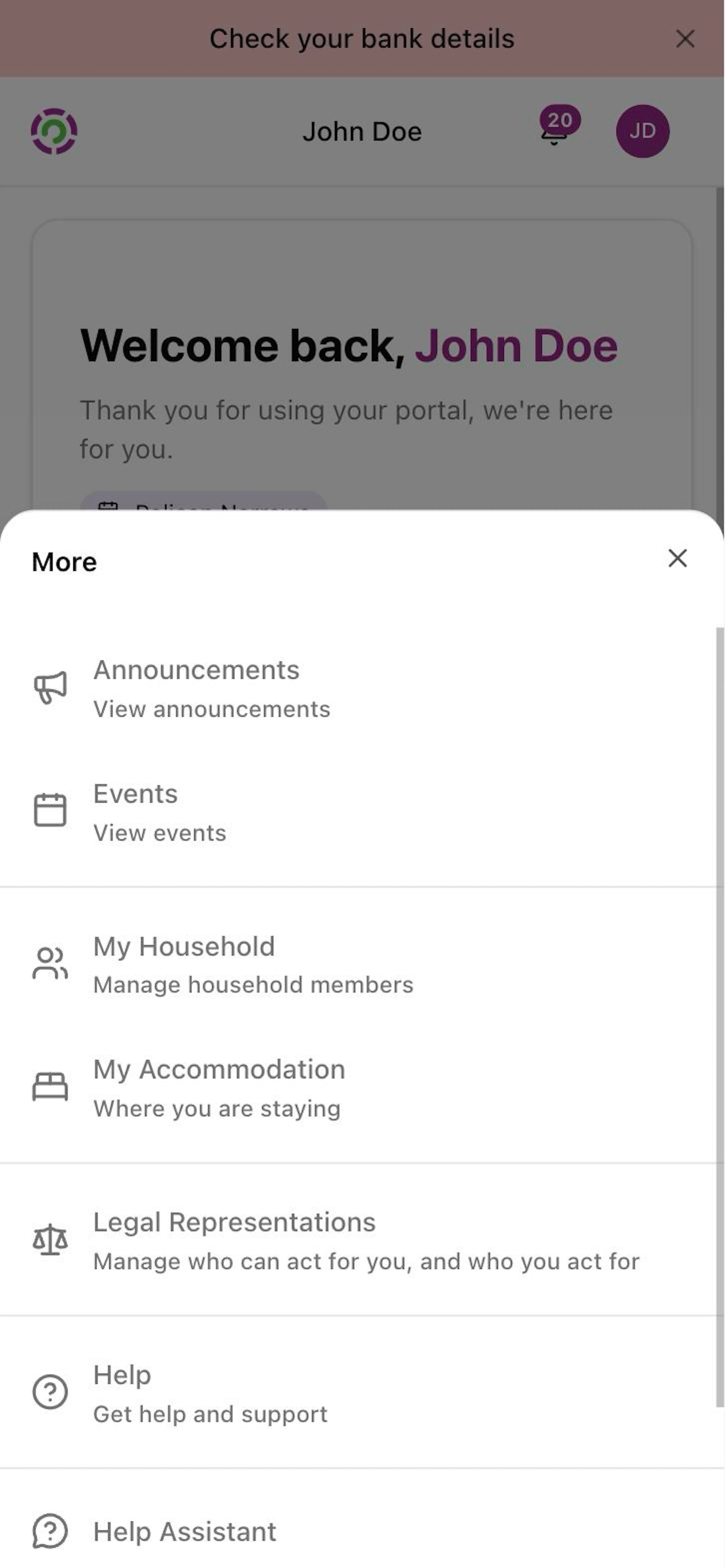
Tap More
Tap More at the bottom right of the screen. A list slides up from the bottom.
Tap Help
Help is the last item at the bottom of the list, with a question mark in a circle. If you don't see it, slide your finger up on the list. Tap Help.
Find the menu on the left
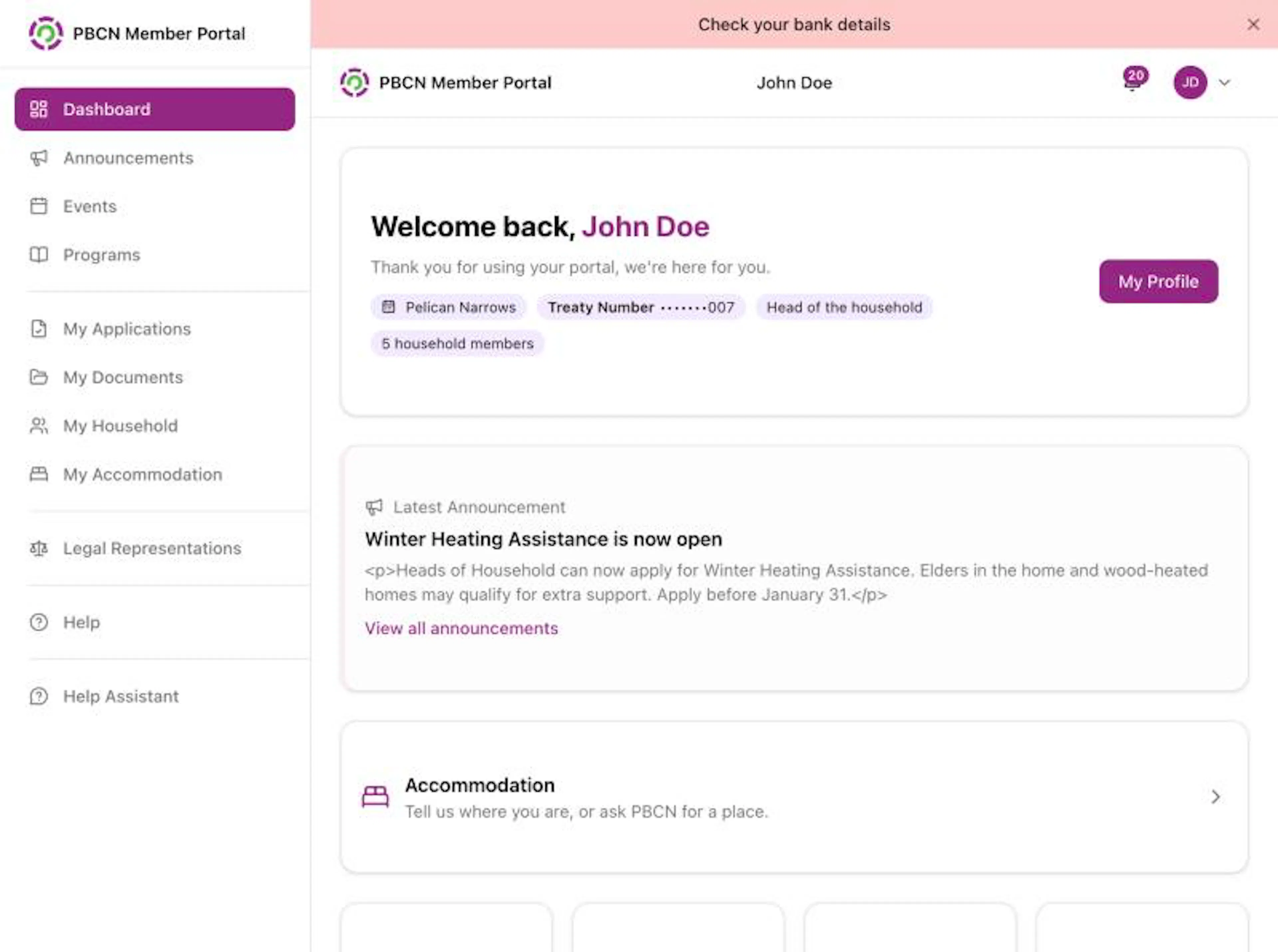
Look at the menu on the left side of the screen.
Click Help
Help is the last item at the bottom of the menu, with a question mark in a circle. Click it.
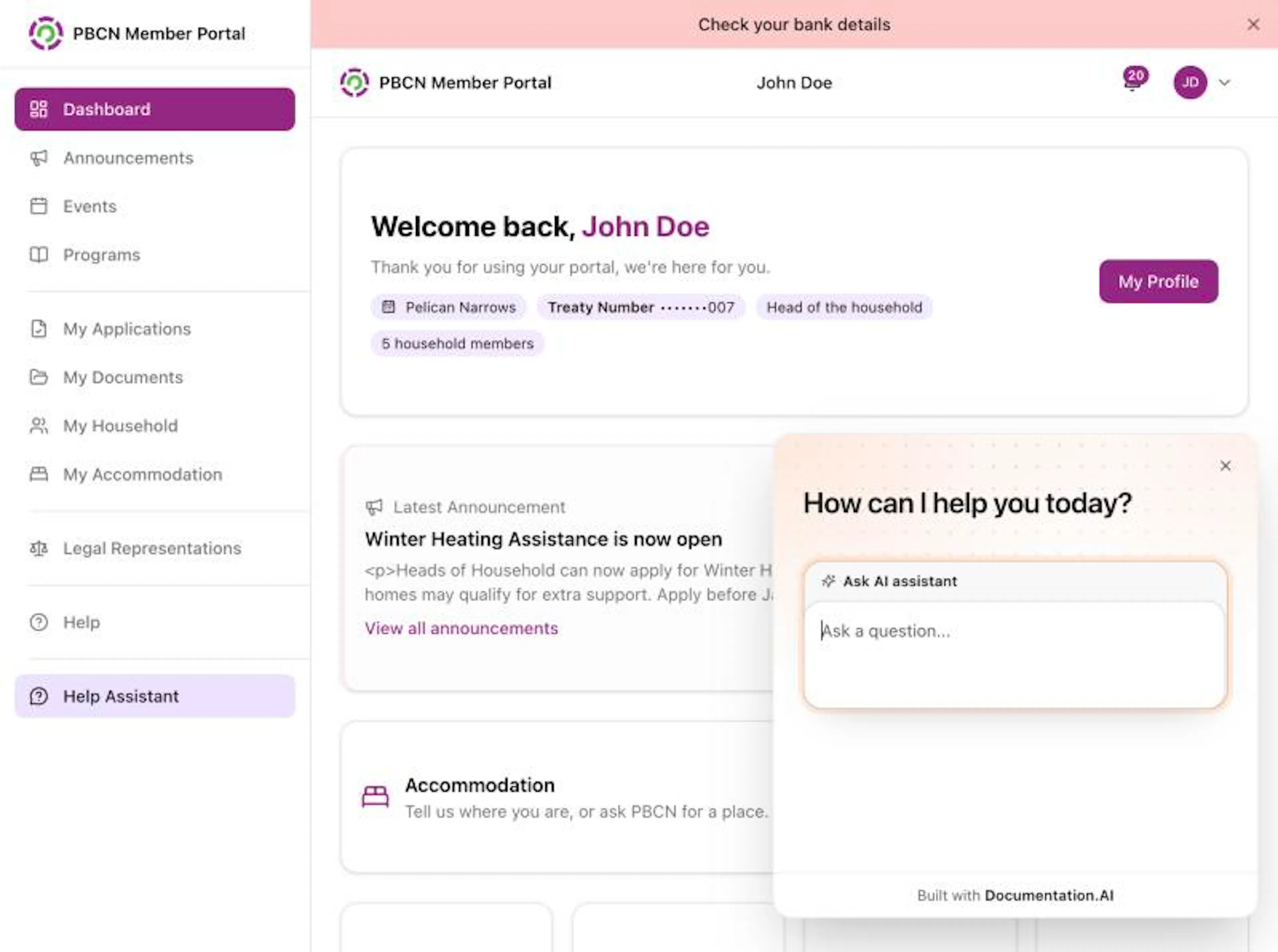
What you see in the help panel
A help panel opens on top of the page. At the top it says "How can we help? Ask about any part of the portal, or start with the help for this page."
In the panel you can:
- Look under Help for this page. It lists 1 to 3 help pages about the page you are on. Tap one to read it. On some pages you see Popular help instead.
- Type a question in the box, about any part of the portal. For example: "How do I download my application PDF?"
- Read any of the other help pages.
The links under Help for this page change with the page you are on. If you go to another page, tap Help again to see the help for that page.
To go back to the portal, close the panel.
If the help panel can't open right now, tapping Help opens the portal's own Help page instead. You can try the panel again later.
Never type your password, a sign-in code, bank numbers, your treaty number or your date of birth into the chat. For anything about your own account, application or payment, contact your band office.