Browse programs
How to find programs in the portal, search and sort the list, and open a program's page.
Open the Programs page
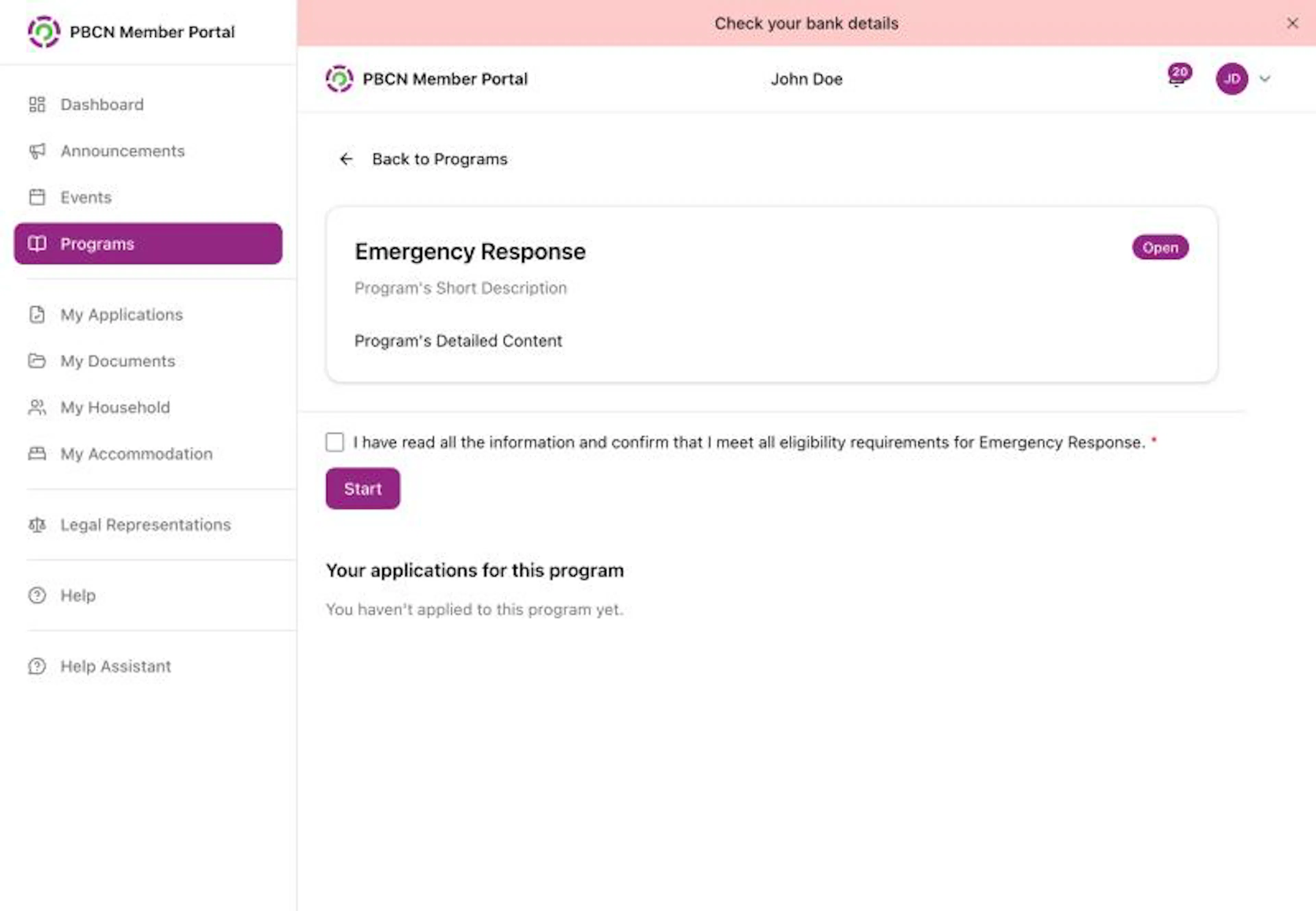
- On a computer: in the menu on the left, click Programs.
- On a phone: tap Programs in the bar at the bottom of the screen.
The Programs page says Browse available programs and apply.
Find a program
Show open or closed programs (optional)
Near the top, tap All, Open or Closed. The number next to each one shows how many programs there are.
Search by name
Tap the box that says Search programs... and type part of the program's name. The list changes as you type.
Sort the list (optional)
Tap the box next to the search box to change the order. Choose Sort by open date or Sort by name.
Filter the list (optional)
Tap the box that says All initiatives and choose a group to show only those programs. Tap the box that says All applicant types and choose Individual or Household to show only those programs.
Open a program
Tap a program's card to open its page.
If you see No programs and There are no programs matching your search., clear the search box or change the filters.
Read a program's page
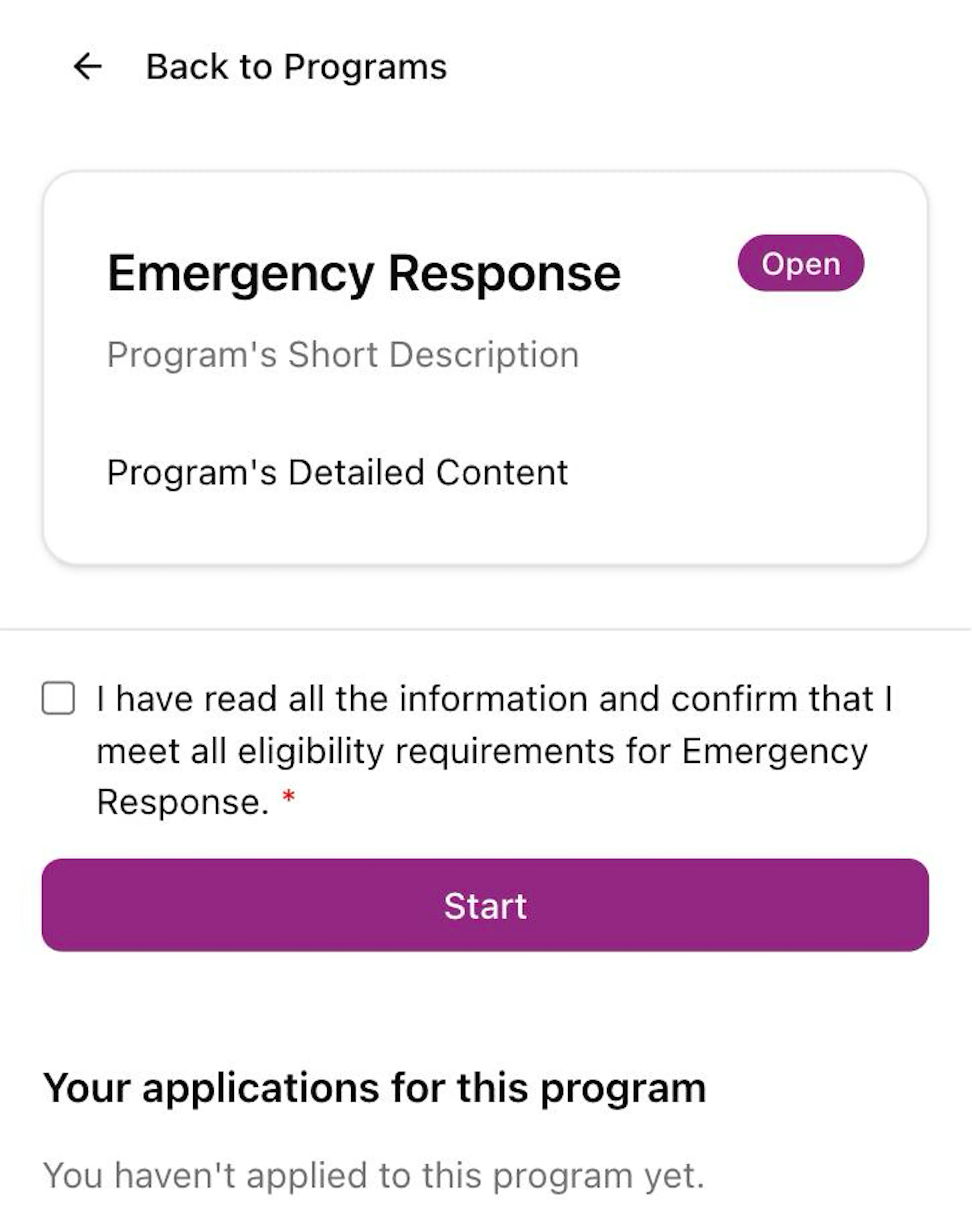
The program's page shows:
- The program name, and a label that says Open or Closed.
- The program's description from PBCN.
- If it is a household program, a yellow note: Applicant Type: Household. Only the Head of Household can submit an application.
- If it opens later, a yellow note: Applications open on and a date, for example Oct 06, 2026.
- Your applications for this program: any applications you already started or sent, with their status.
When the program is open, the bottom of the page has a checkbox and a purple Start button. See Apply for a program.
The portal can't tell you if you qualify for a program. For questions about a program, contact your band office.
To go back to the list, tap Back to Programs at the top of the page.