Notifications
How to see your portal notifications, open the related page, and mark notifications read or starred.
What notifications are
The portal sends you a notification when something changes, for example when staff ask you a question about your application. You see them in the portal, and you may also get an email.
See your newest notifications
Tap the bell
At the top right of the screen, tap the bell. A purple number on the bell shows how many you haven't read.
A small list opens with your newest notifications.
Open one
Tap a notification to open the page it is about.
See them all
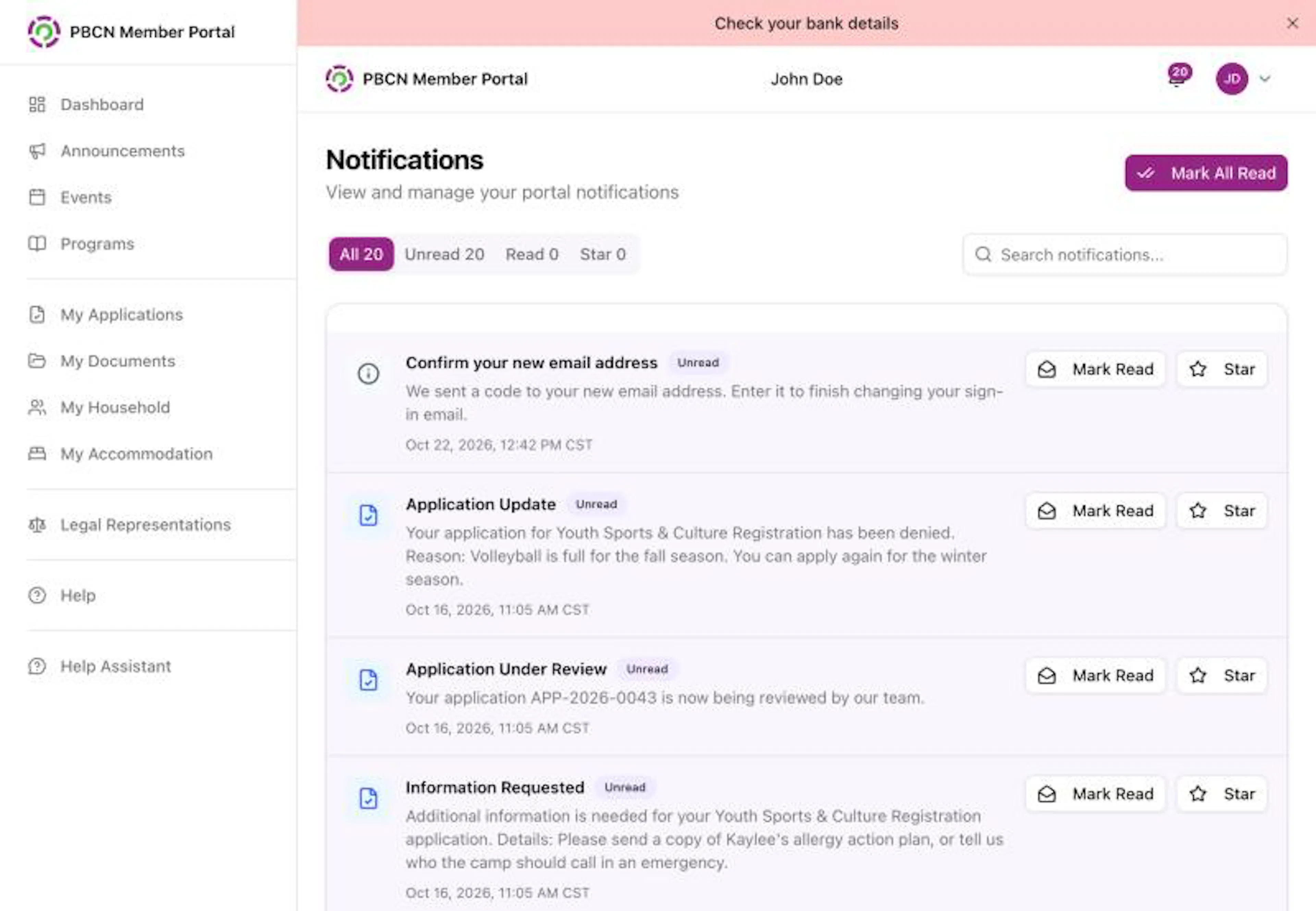
To see every notification, tap the white View All button at the bottom of the list. The Notifications page opens.
Use the Notifications page
Choose what to show
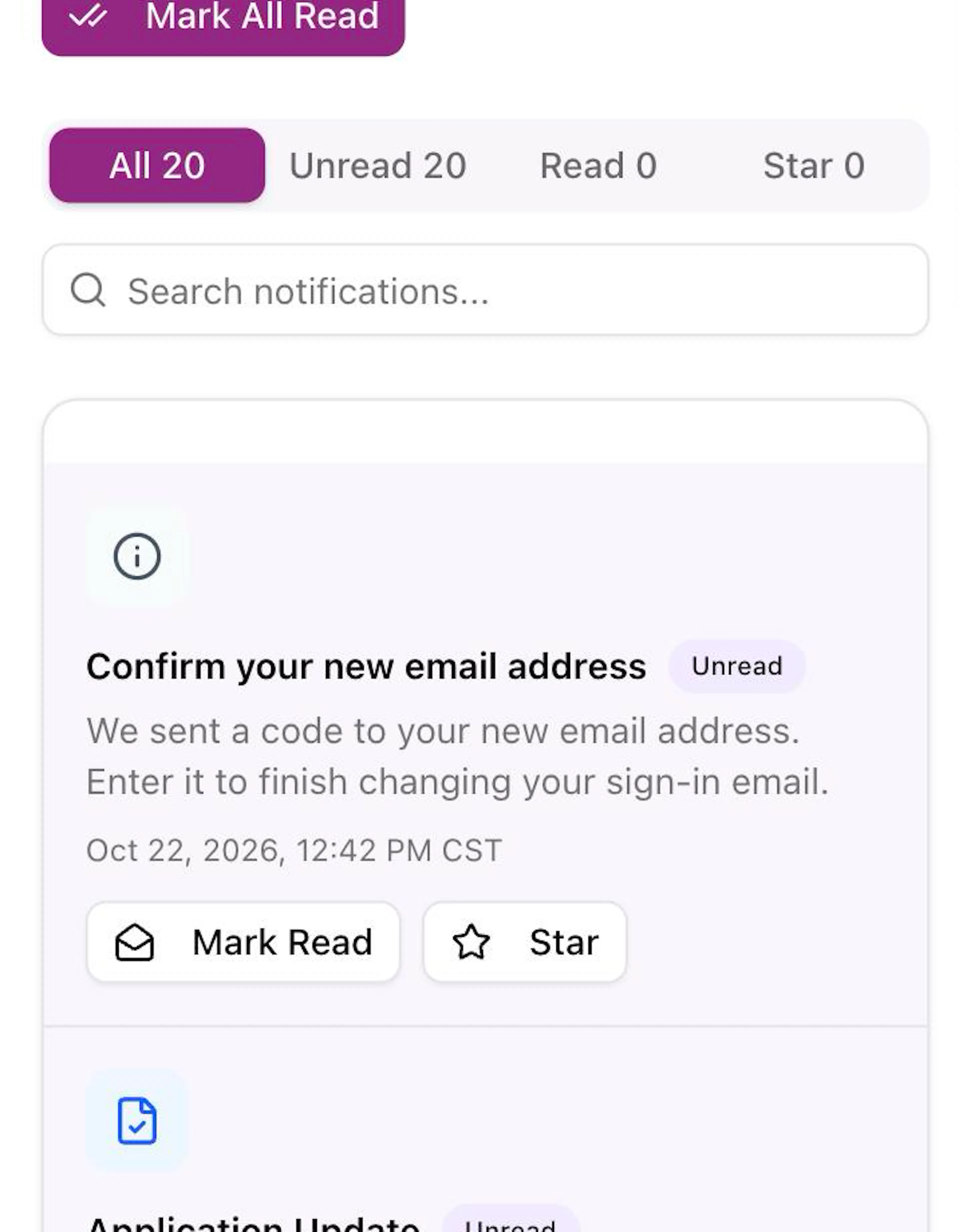
Near the top, tap All, Unread, Read or Star to show only those notifications. The number next to each one shows how many there are.
Search
To find one, tap the box that says Search notifications... and type a word, for example your application number.
Open the related page
Tap the title of a notification. The page it is about opens, for example your application. If you are signed out, sign in first, and the page opens after.
Mark it read or unread
Tap the white Mark Read button next to a notification. To make it show as new again, tap Mark Unread.
Star it
Tap the white Star button to keep a notification easy to find. Starred ones show in the Star list. Tap Unstar to remove the star.
To mark every notification as read, tap the purple Mark All Read button at the top right of the page.
Don't answer an email or text that asks for your password, sign-in code or bank details. Sign in to the portal yourself to check, and contact your band office if you are not sure.