Forgot your password
How to get a reset link, confirm it's you, choose a new password, and what to do if the link has expired or was already used.
Get a reset link
Open the sign-in page
Open the portal website. You see the Welcome Back box.
Tap Forgot Password
Under the purple Sign In button, tap the white Forgot Password button.
A box opens with the title Forgot Password.
Type your email
Tap the box under Email * and type the email address for your account.
Send the link
Tap the purple Send Reset Link button.
You see a green message: If an account exists with this email, you'll receive a password reset link.
Open your email
Open your email and find the message from the portal. If you don't see it, check your Spam or Junk folder.
Open the link
Tap the link in the email. The Reset Password page opens in your browser.
The portal shows the same green message for every email address. If no email arrives, check that you typed the right address, then contact your band office.
Choose a new password
The Reset Password page shows your email in a grey box, so you know which account you are changing.
Before you choose a password, the page asks you to confirm it's you. It says To confirm it's you, enter your treaty number, then choose a new password. If your account has no treaty number, it asks for your date of birth instead.
Confirm it's you
If you see Treaty number *, type your treaty number in that box.
If you see Date of birth * instead, choose the month, then type the day and the year.
If you leave it empty, you see "Enter your treaty number." or "Enter your date of birth." If you see "The details don't match our records.", check what you typed and try again.
Type a new password
Tap the box under New Password * and type a new password. It must be at least 8 characters.
If you see "Password must be at least 8 characters", make your password longer.
Type it again
Tap the box under Confirm New Password * and type the same password again.
If you see "Passwords do not match", type both boxes again carefully.
Save it
Tap the purple Reset Password button.
You see a green check mark and Password Reset. After a moment, the sign-in page opens.
Sign in
Sign in with your email and your new password. See Sign in and sign out.
The same page is used when you set your password for the first time from your setup email.
If the page shows Link No Longer Works, the link can't be used any more. Tap Back to Sign In and contact your band office for a new link.
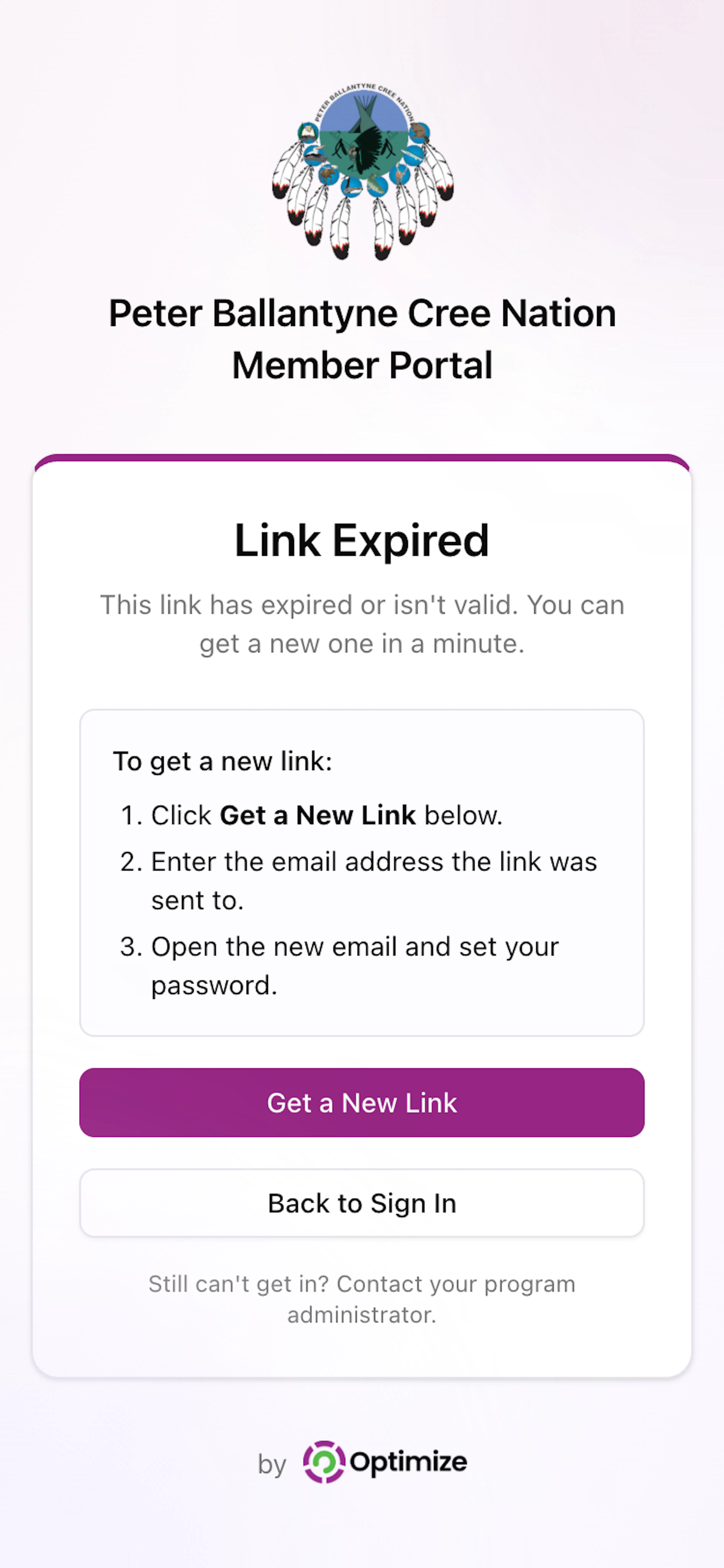
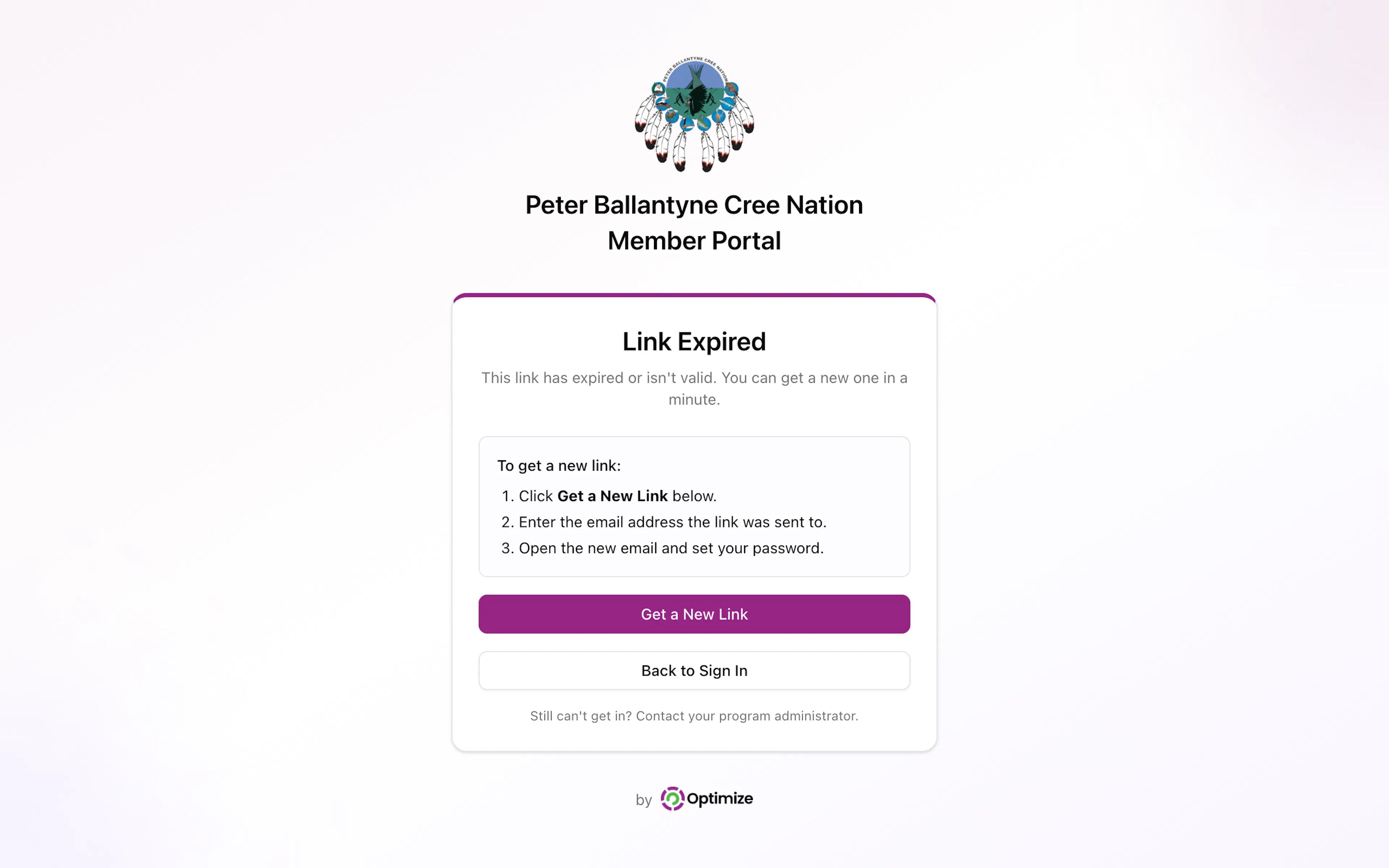
If the page says Link Expired
You see Link Expired and the words This link has expired or isn't valid.
Get a new link
Tap the purple Get a New Link button. The Forgot Password box opens.
Type your email
Type the email address the link was sent to, then tap Send Reset Link.
Use the newest email
Open the new email and tap its link. Use only the newest email.
If the page says Password Already Set
You see Password Already Set and the words You've already set your password with this link.
This means the link was already used. Tap the purple Sign In button and sign in with the password you chose.
If you don't remember it, tap Forgot Password on the sign-in page to get a new link.
If you forgot your email
On the sign-in page, tap the white Forgot Email button. The portal can't look up your email for you. Contact your band office for help.