Your profile
How to open My Profile, update your contact details and photo, and ask for a change to your name or other locked details.
Open My Profile
Open your account menu
At the top right of the screen, tap the round picture or circle with your initials (for example JD for John Doe).
Tap My Profile
Tap My Profile in the menu. The My Profile page opens.
You can also tap the Update My Profile button under Quick Actions on your Dashboard.
What is on the page
- Personal Information: your name, email, phone numbers and date of birth.
- Member Details: your Treaty Number and Community. It says Read only, which means you can't change them here.
- Direct Deposit: your bank details. See Bank details for direct deposit.
- Account Status: your account and household role.
Update your phone numbers
Start editing
In the Personal Information box, tap the white Edit button at the top right of the box.
The details turn into boxes you can type in. Boxes with a lock icon can't be changed here.
Change your phone
Tap the box under Phone and type your phone number, for example (306) 555-1234.
If you see "Phone must be a valid phone number", check the number and type it again.
Choose the phone type
Tap the box under Phone Number Type that says Select type. A list opens. Tap the type that fits.
Add a second number (optional)
Under Secondary Contact Number you can add another number where we can reach you:
- Secondary Phone: the other phone number.
- Phone Type: choose the type from the list.
- Who does this number belong to?: the person's name.
- Relationship to Member: for example Spouse or Parent.
Answer any other questions
You may see more questions further down. Fill in any box with a red star *.
Save
Tap the purple Save button at the top right of the Personal Information box.
A message pops up: Profile updated and Your changes have been saved successfully.
To stop without saving, tap Cancel next to the Save button.
Change your photo (optional)
You can add a profile photo. It must be a JPG, PNG or WebP picture, up to 2 MB.
Tap your photo
At the top of My Profile, tap the round picture or circle with your initials. On a computer, move your mouse over it and click the camera icon.
Choose a picture
Your phone or computer opens your pictures. Tap the picture you want.
When it works, a message pops up: Photo updated.
If you see Invalid file type, choose a JPG, PNG or WebP picture. If you see File too large, choose a smaller picture (under 2 MB).
Change your sign-in email
You can change your sign-in email yourself. Tap the white Change email button next to Email in Personal Information. See Change your sign-in email.
Ask to change your name or other locked details
You can't change your name, treaty number or community yourself. Instead, send a request.
Find the button
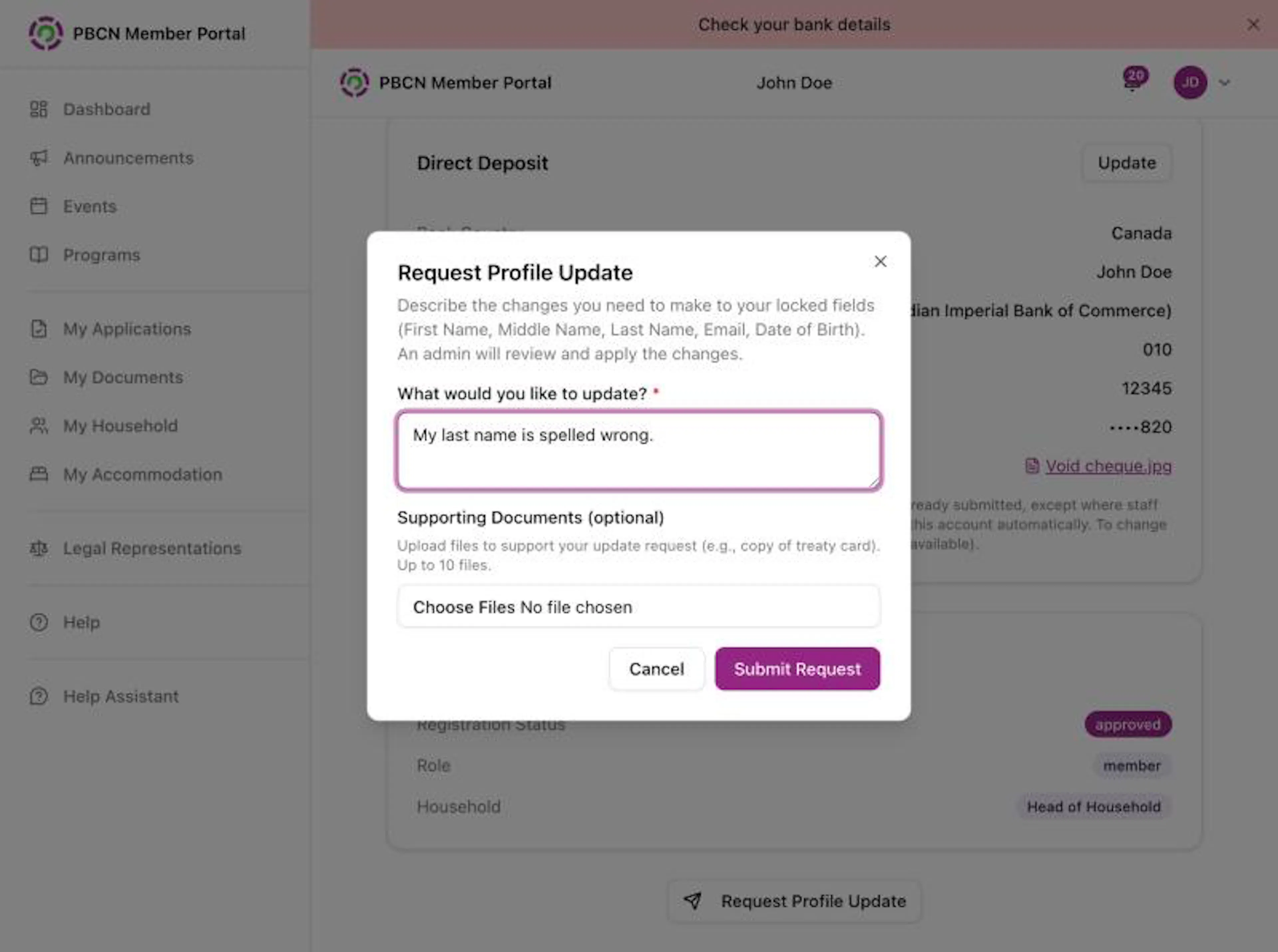
Scroll to the bottom of My Profile. Tap the white Request Profile Update button.
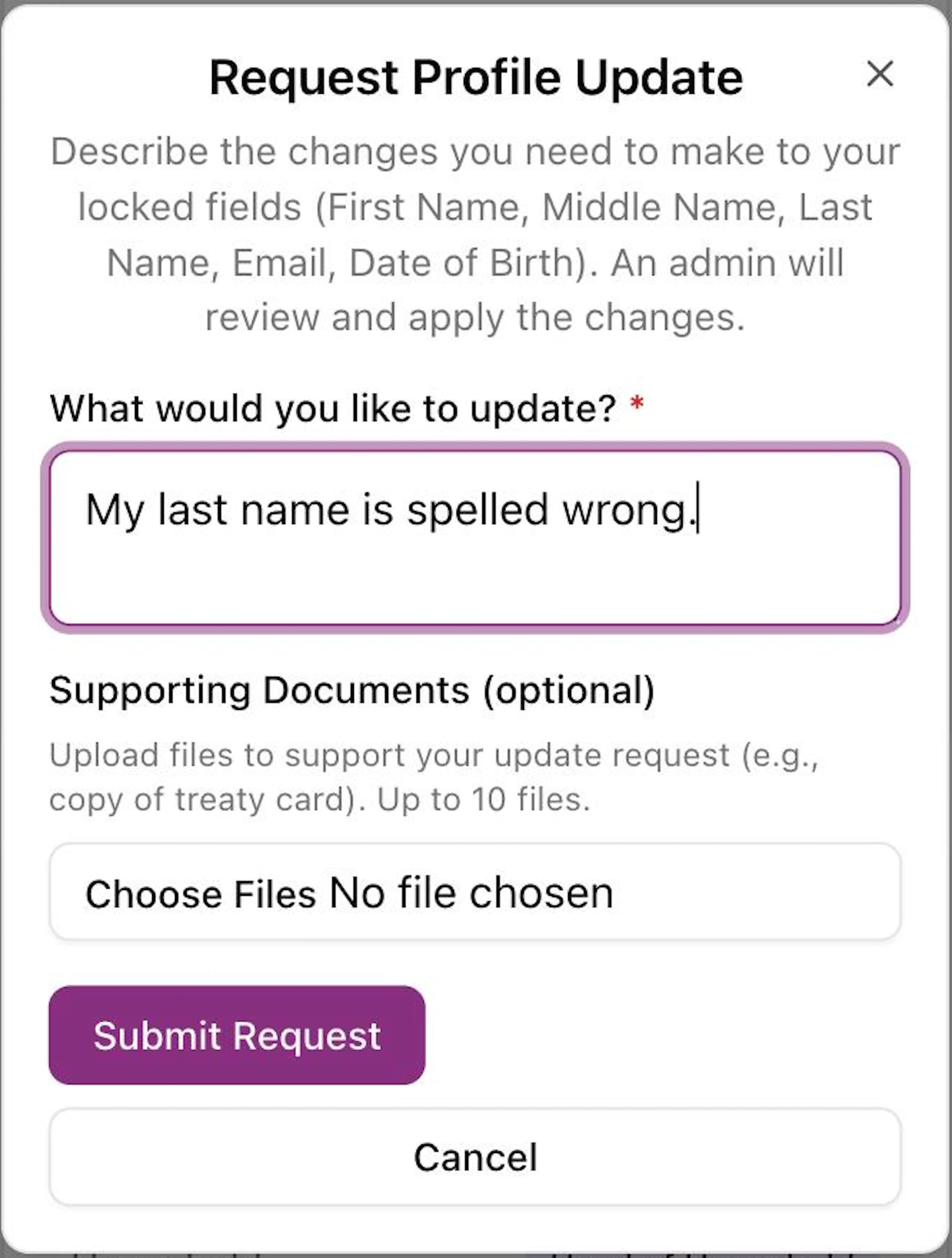
A box opens with the title Request Profile Update.
Describe the change
Tap the box under What would you like to update? * and type what is wrong and what it should be. For example: "My last name is spelled wrong. It should be Doe."
Add a document (optional)
Under Supporting Documents (optional), tap Choose Files (or Browse) and pick a photo or file that shows the right information, for example a copy of your treaty card. You can add PDF, JPG, PNG or Word files.
Send the request
Tap the purple Submit Request button.
A message pops up: Update request submitted.
If the Submit Request button doesn't work, a message tells you what is missing, for example Please fill in: Description of the change. Type your description and try again.
Need help?
For questions about your own details, contact your band office.