Using the portal on your phone
How to move around the portal on a phone or tablet with the bottom bar and the More list.
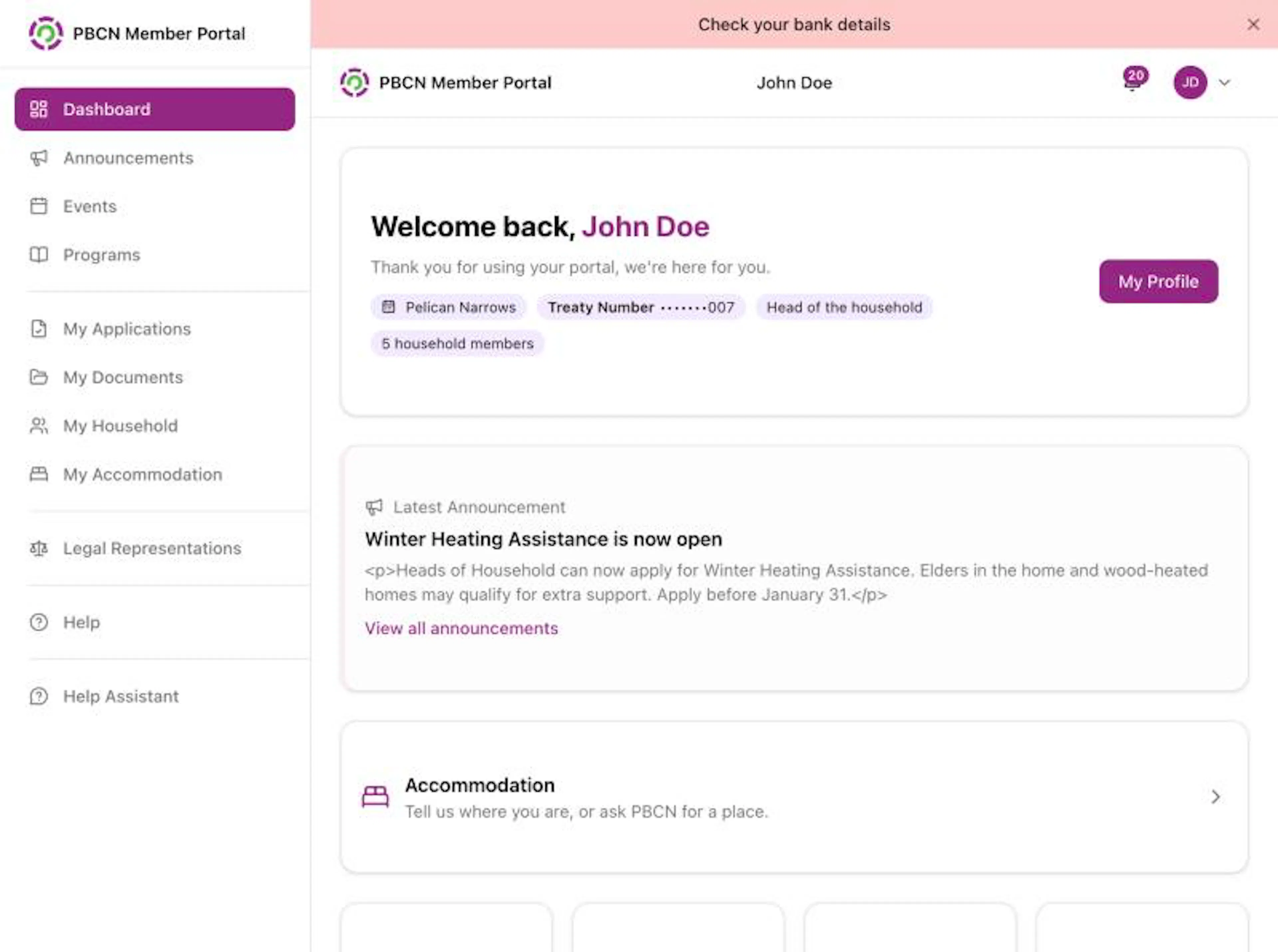
Phone and computer look different
The portal works on phones, tablets and computers. The pages are the same, but the menu is in a different place:
| On a computer | On a phone or tablet |
|---|---|
| The menu is on the left side of the screen. | The menu is a bar at the bottom of the screen. |
| You see every page name in the menu. | You see 4 pages and a More button. The other pages are inside More. |
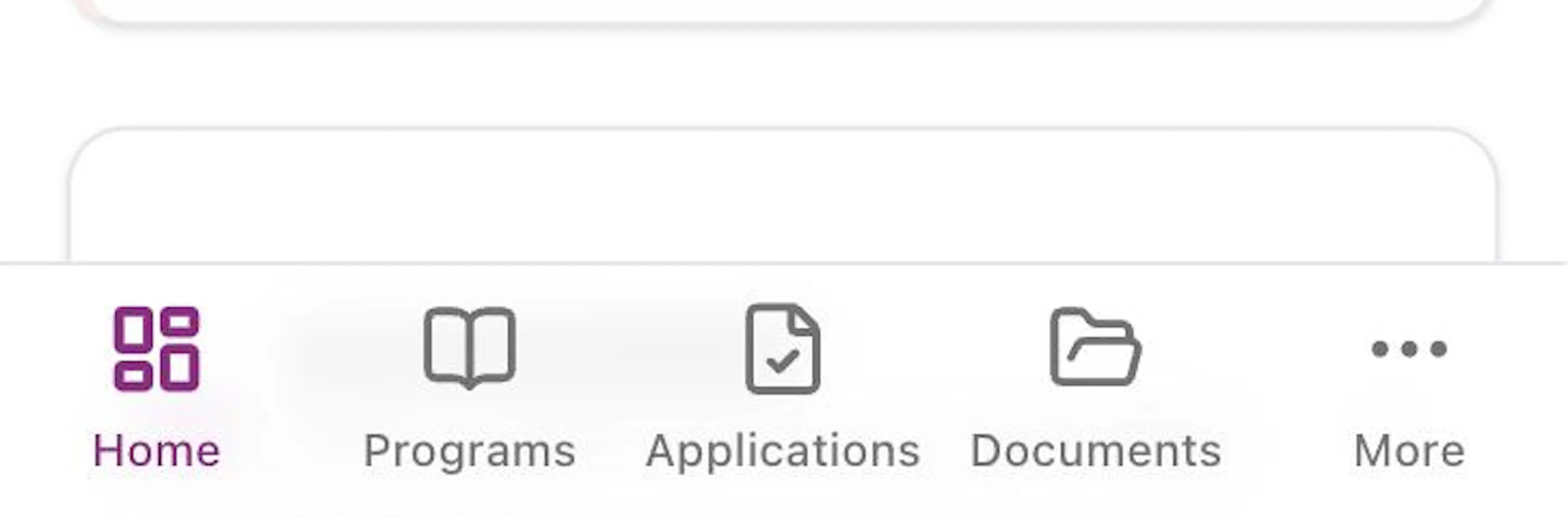
The bar at the bottom
The bottom bar has 5 buttons. The page you are on shows in purple.
| Button | What it opens |
|---|---|
| Home | Your Dashboard |
| Programs | The Programs page |
| Applications | My Applications |
| Documents | My Documents |
| More | A list of all the other pages |
Open a page from More
Tap More
Tap More at the bottom right of the screen. A list slides up from the bottom.
Find the page
The list shows pages like Announcements, Events, My Household, Legal Representations and Help. If you don't see the page you want, slide your finger up on the list to see more. Help opens the help panel, see Get help in the portal.
Tap the page
Tap the page name. The list closes and the page opens.
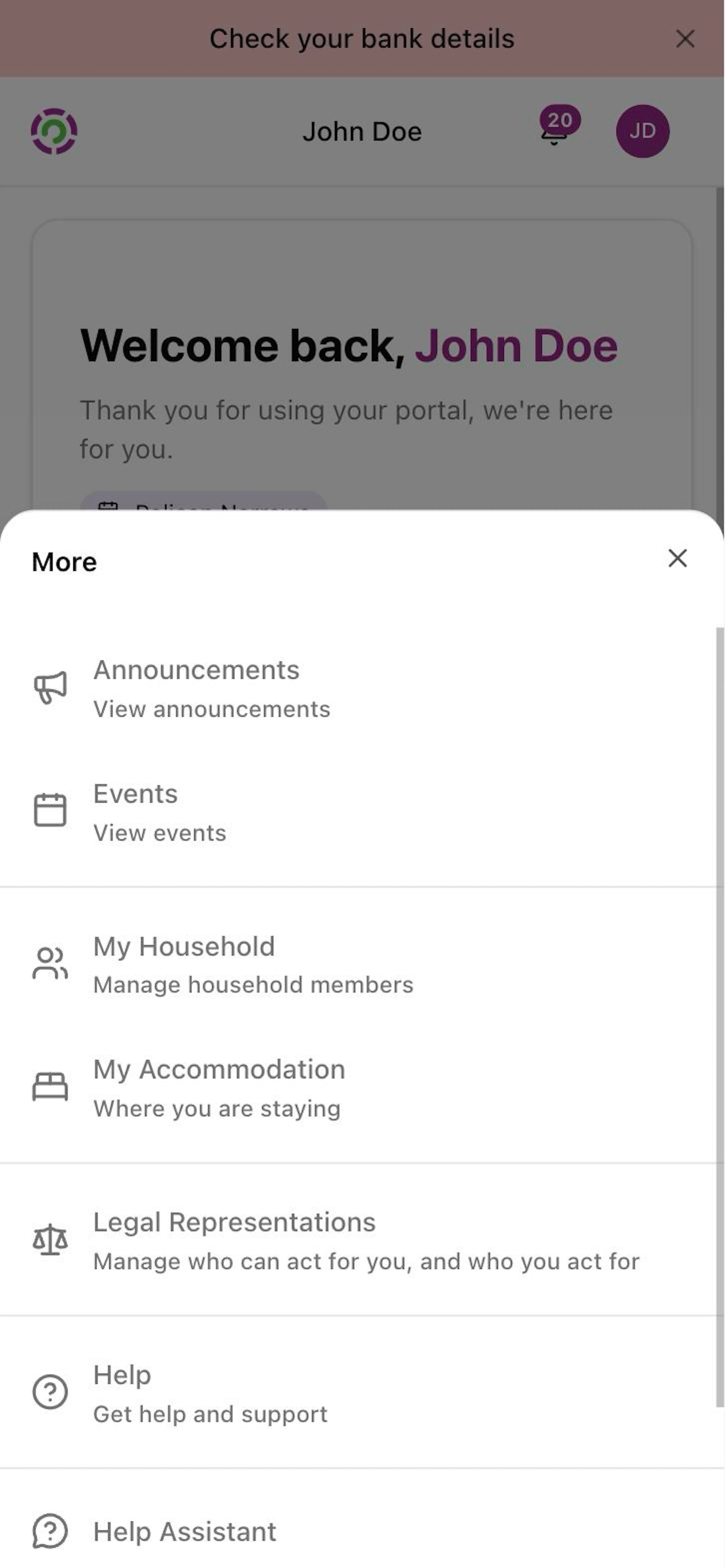
My Accommodation only shows in the list at certain times. See About My Accommodation.
Your profile, security and notifications
These are at the top right of the screen, on phones and computers:
- The bell opens your notifications. A number on the bell shows how many you haven't read. See Notifications.
- The round picture or circle with your initials opens your account menu. It has My Profile, Security and Log out.
Tips for phones
- Turn your phone sideways if a table or form looks squished.
- If a page doesn't load, check your signal, then pull down on the page or tap your browser's reload button.
- Some pages open in a new browser tab. To go back, tap the tabs button in your browser and choose the portal tab.