My Applications
How to find your applications, open one, and what each status label means.
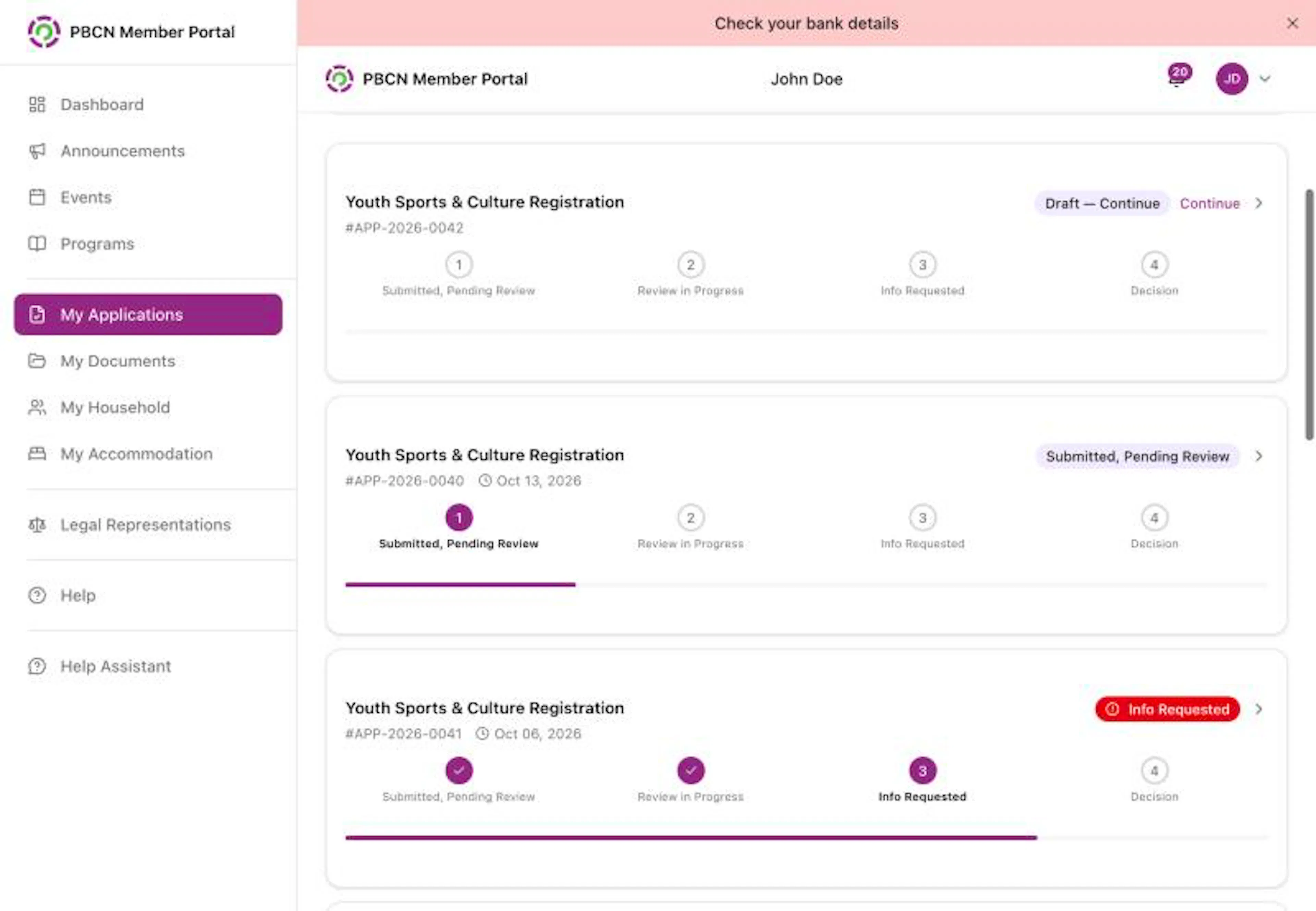
Open My Applications
- On a computer: in the menu on the left, click My Applications.
- On a phone: tap Applications in the bar at the bottom of the screen.
The page says Track and manage your program applications.
Find an application
Look at the list
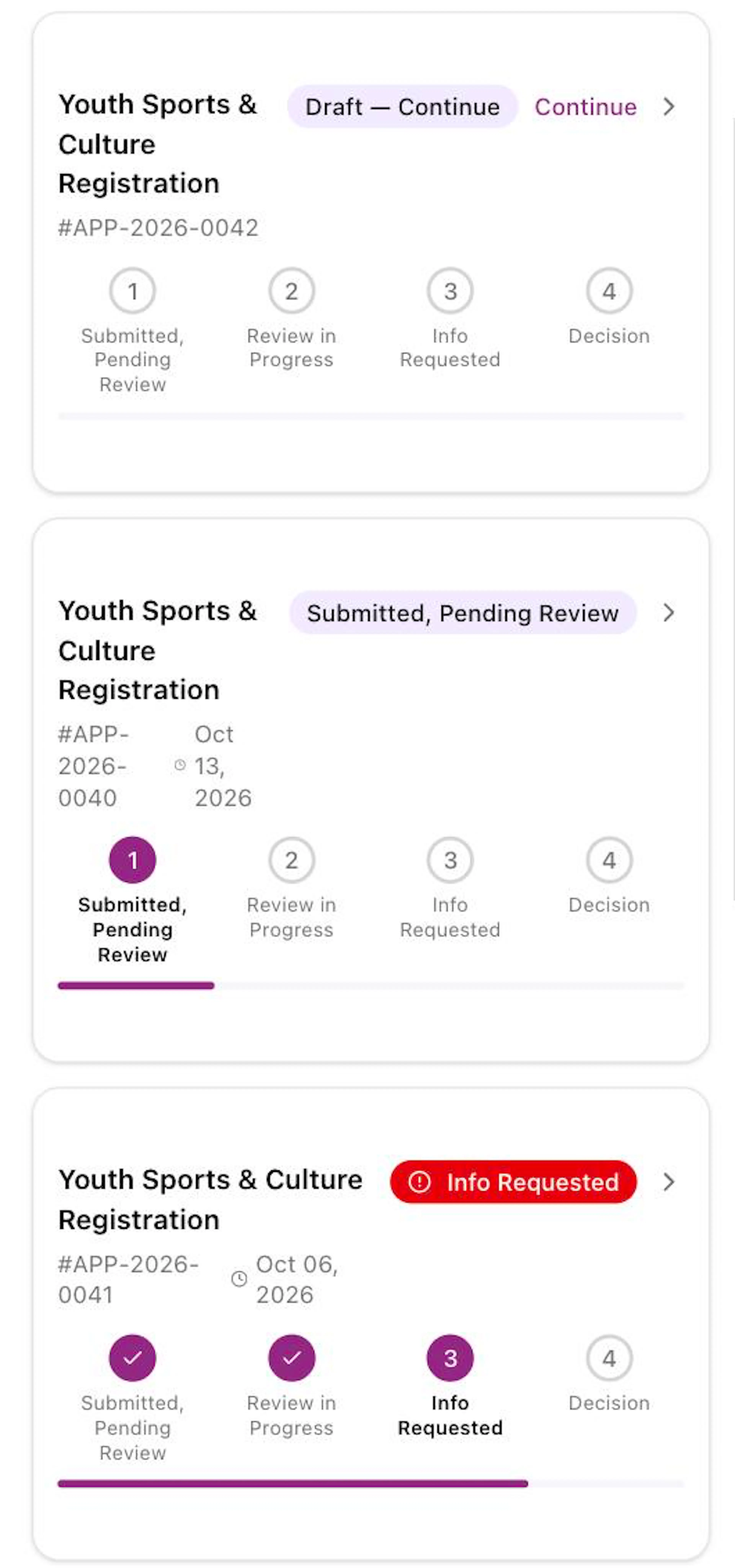
Each card shows the program name, the application number (for application APP-2026-0001 it shows #APP-2026-0001), the date you sent it, and a status label on the right.
Search (optional)
Tap the box that says Search by program or application number and type a program name or application number.
Filter (optional)
Tap the box that says All Programs to show only one program. Under Date Range, tap the two date boxes to choose a start date and an end date. A green label shows how many applications match. To clear the filters, tap the white square button with an X.
Open an application
Tap the card. A sent application opens in a new browser tab. A draft opens the form so you can keep going.
If you see No applications and You haven't submitted any applications yet., tap Browse available programs to start an application.
What the status labels mean
| Label | What it means |
|---|---|
| Draft — Continue | You started this application but haven't sent it yet. Tap it to keep going. |
| Submitted, Pending Review | Your application was sent and is waiting for review. |
| Review in Progress | Staff are reviewing your application. |
| Info Requested | Staff asked you for more information. Open the application to answer. |
| Approved | A decision was made and your application was approved. |
| Denied | A decision was made and your application was denied. |
| Withdrawn | The application was withdrawn. |
| Cancelled — applicant moved | The application was cancelled because the applicant moved out of the household. |
| Cancelled — applicant died | The application was cancelled because the applicant passed away. |
The bar under each card shows the steps: Submitted, Pending Review, Review in Progress, Info Requested and Decision. The steps that are done are filled in purple.
The portal can't tell you how long a review takes or what the decision will be. For questions about your application, contact your band office.
Inside an application
When you open an application, you see:
- The program name and Application Number.
- The status label and the step bar.
- Application Details: the date you sent it and your answers. If it was denied, the reason shows here as Denial Reason.
- Information Requests: questions from staff. See When staff ask for more information.
- Activity Log: a list of what happened and when, newest first. Tap Activity Log to open or close it.
- Buttons at the bottom, such as Download PDF, Update Application, Request a change or Withdraw Application.
On a phone, an application with questions from staff has two buttons at the top: Overview and Information Requests. Tap Information Requests to see the questions.
Payment labels on approved applications
An approved application may show an Approved Benefits box. Each line has a label:
| Label | What it means |
|---|---|
| Processing | Your payment is being prepared. |
| Pending cheque payment | Your payment will be paid by cheque. |
| On hold | Your payment is paused for now. |
| Payment sent | Your payment has been sent. For a cheque, the words Cheque issued, or the cheque number and date, show under the label. |
| Paid | Your payment has been completed. |
| Action needed: update your direct deposit | Your direct deposit details need to be updated. Answer the request under Information Requests. |
For questions about a payment, contact your band office.
To go back to the list, tap Back to Applications at the top of the page.