Sign in and sign out
How to sign in to the portal, enter a sign-in code, and sign out safely.
Sign in
Open the sign-in page
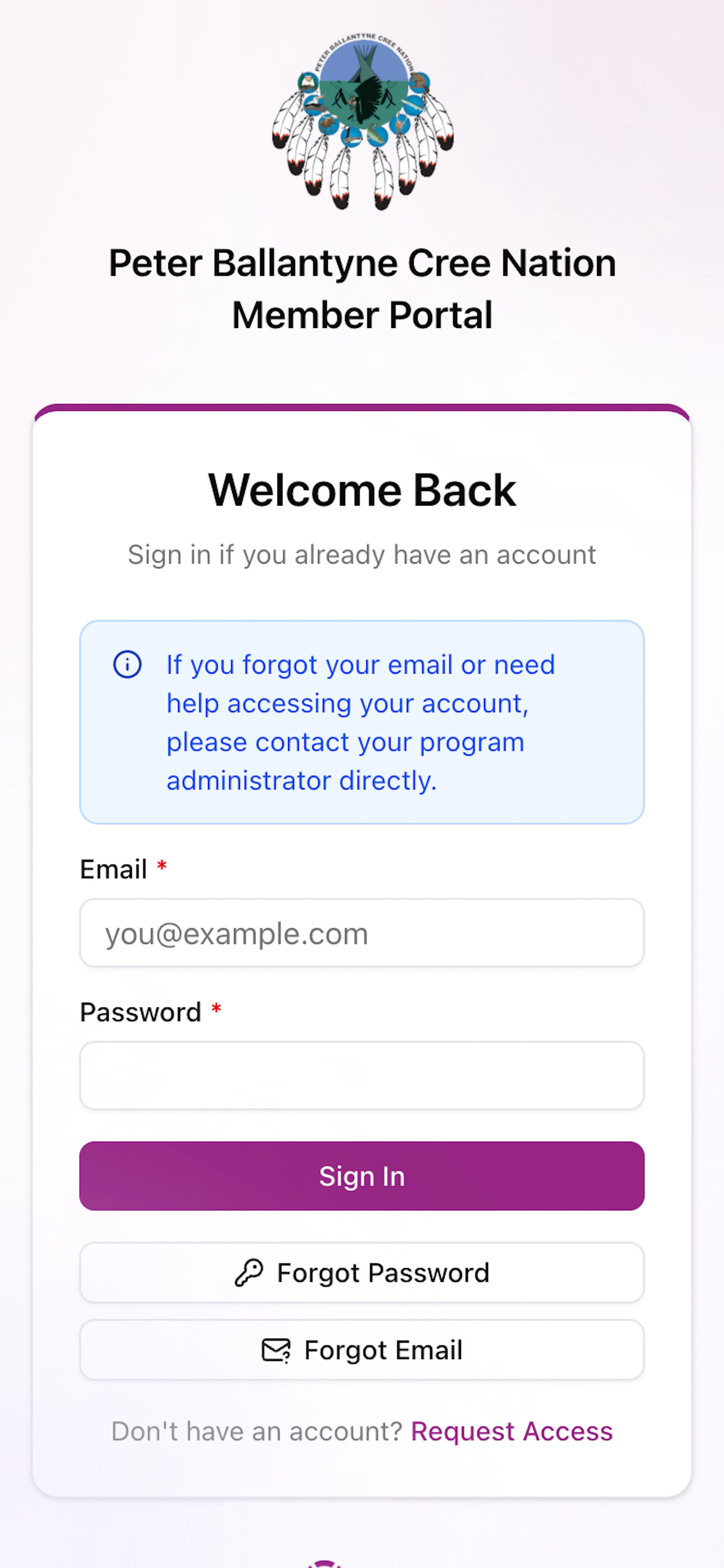
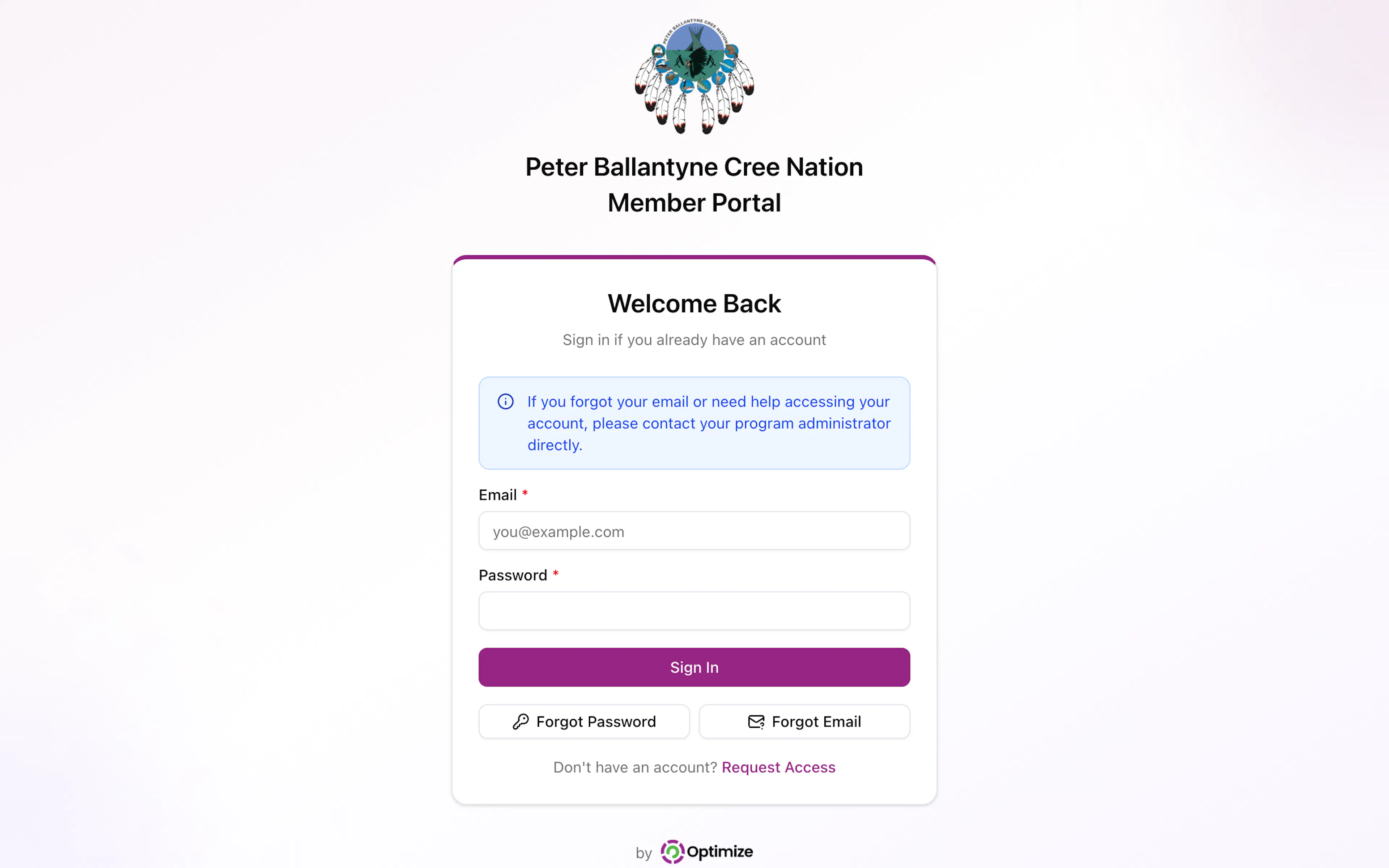
Open the portal website. You see a box with the title Welcome Back.
Type your email
Tap the box under Email * and type the email address for your account.
Type your password
Tap the box under Password * and type your password. The letters show as dots so no one can read them.
Sign in
Tap the purple Sign In button.
If your password is right and you don't use sign-in codes, the Dashboard opens.
If you use sign-in codes, a new box opens with the title Confirm it's you. Go to Enter your sign-in code.
If you sign in on a phone, computer or browser you haven't used for the portal before, a box opens with the title Check your email. Go to Sign in on a new device.
Sign in on a new device
If you don't use sign-in codes, the portal still asks for a code the first time you sign in on a new phone, computer or browser. This keeps other people out even if they know your password.
Look at the Check your email box
The box says We don't recognise this device, so we sent a code to and part of your email address, for example j•••@example.ca.
Find the code
Open your email and find the new email with the 6-digit code. If you don't see it, check your Spam or Junk folder.
Type the code
Go back to the portal. Tap the box under Sign-in code * and type the 6 numbers. Tap the purple Verify button.
The Dashboard opens. Next time you sign in on this device, you won't need a code.
If you need a new code, tap the purple words Send a new code above the Verify button.
After you set your password from the email link, the device you used is already known. You won't need a code when you first sign in there.
If you didn't try to sign in and you get a code email, someone may know your password. Choose a new one (see Forgot your password) and contact your band office.
If a red message appears, read it carefully:
- If your email or password is wrong, check them and try again. Make sure Caps Lock is off.
- If the message asks you to wait, the Sign In button shows Try again in and a number of seconds. Wait until the countdown ends, then try again. You can also tap Forgot Password to choose a new password.
Enter your sign-in code
If you turned on sign-in codes, the portal asks for a code each time you sign in. See Security settings to turn codes on or off.
Look at the Confirm it's you box
The box says We emailed a 6-digit code to and part of your email address, for example j•••@example.ca.
Open your email
Open your email and find the new email with the 6-digit code. If you don't see it, check your Spam or Junk folder.
Type the code
Go back to the portal. Tap the box under Sign-in code * and type the 6 numbers.
Verify
Tap the purple Verify button. The Dashboard opens.
If you see "That code didn't work. Check the code we emailed you and try again.", check the numbers. If you need a new code, tap the purple words Send a new code above the Verify button. If it says Send a new code (wait and a number, wait until the countdown ends. When a new code is sent, you see We sent a new code.
If you set up an authenticator app, tap Use my authenticator app instead and type the code from your app. If you can't use your app, tap Use a backup code instead and type one of your backup codes.
Sign out
Open your account menu
At the top right of the screen, tap the round picture or circle with your initials (for example JD for John Doe).
A small menu opens. It shows Logged in as and your name.
Log out
Tap Log out at the bottom of the menu. You go back to the sign-in page.
Using a shared or public computer
If other people use the same computer or phone (for example at the band office, a library or a friend's house):
- Always tap Log out when you are done.
- If the browser asks to save your password, choose Never or Not now.
- Close the browser window after you log out.
Never share your password or sign-in code with anyone. If you think someone else used your account, contact your band office right away.
If a staff member gave you a temporary password
Sometimes staff set a temporary password for you. After you sign in with it, you see a page called Choose a new password.
Type the temporary password
Tap the box under Temporary password * and type the password staff gave you.
Type a new password
Tap the box under New password * and type a new password. It must be at least 8 characters, and different from the temporary one.
Type it again
Tap the box under Confirm new password * and type the same new password again.
If you see "Passwords do not match.", type both passwords again carefully.
Save it
Tap the purple Set new password button.
If the sign-in fails and says the temporary password may have expired, contact your band office to get a new one.