Create your account
How to ask for a portal account with the Request Access form.
Before you start
To get a portal account, you fill in a short form called Request Access. Have these ready:
- Your first and last name.
- An email address you can open right now. You will need to check it for a code.
- Your community.
- Your treaty number.
- Your date of birth.
You can only have one account. If you think you already have one, try Forgot your password first.
Fill in the Request Access form
Open the sign-in page
Open the portal website. You see the Welcome Back box.
Open the form
At the bottom of the Welcome Back box, next to Don't have an account?, tap the purple words Request Access.
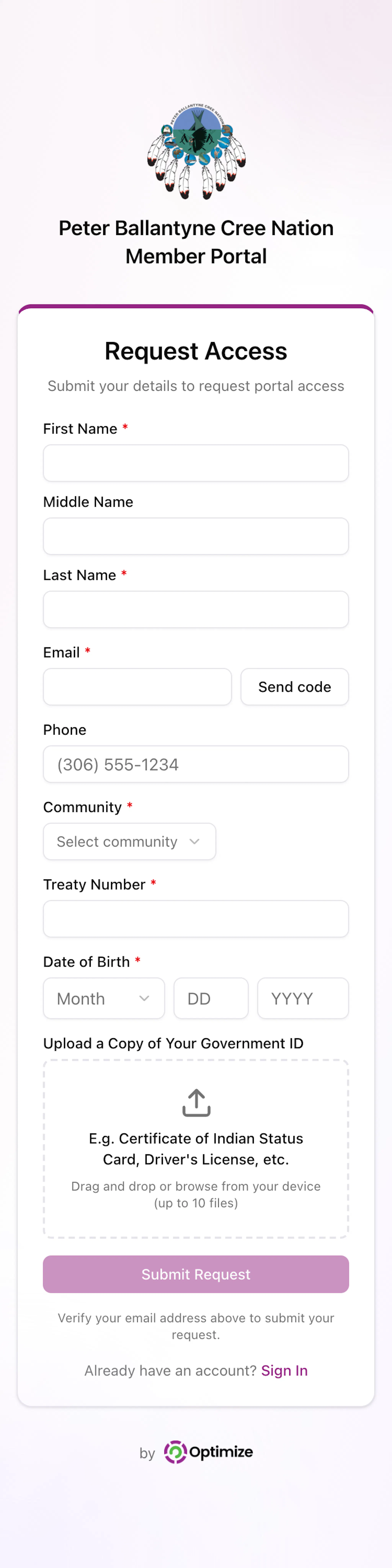
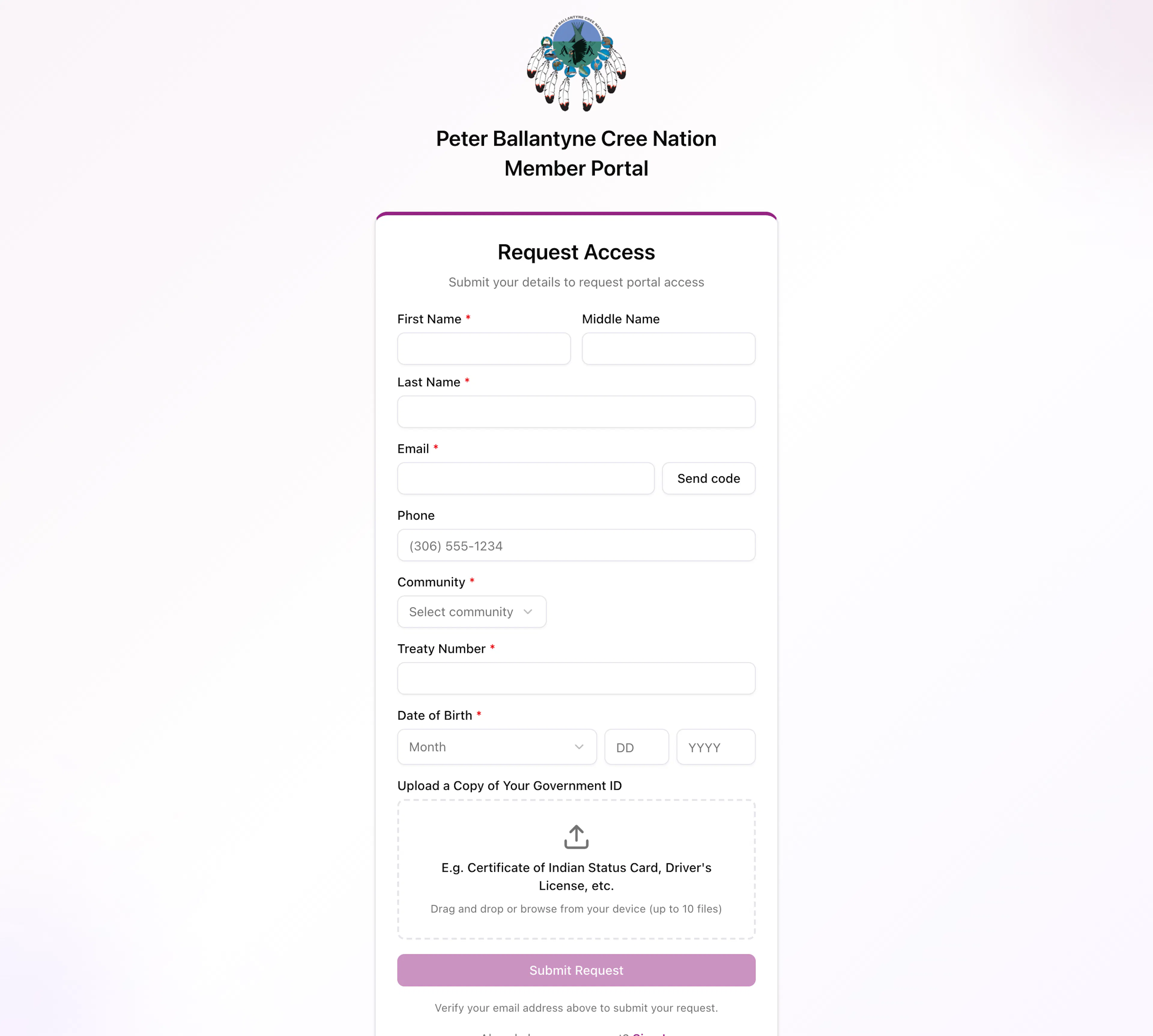
The Request Access form opens.
Type your name
Tap the box under First Name * and type your first name. Then tap the box under Last Name * and type your last name.
Middle Name has no star, so you can leave it empty.
If you leave a name box empty, red words appear under it: "First name is required" or "Last name is required". Tap the box and type your name to fix it.
Type your email
Tap the box under Email * and type your email address.
Send yourself a code
Tap the white Send code button next to your email.
A small box appears that says Code sent to and your email address.
Find the code in your email
Open your email on your phone or computer. Look for a new email from the portal with a 6-digit code.
If you don't see it, check your Spam or Junk folder.
Enter the code
Go back to the form. Tap the box under Verification code * and type the 6 numbers.
Verify your email
Tap the purple Verify button next to the code.
When it works, you see green ✓ Verified next to your email, and the words Email verified.
If you see "That code didn't work. Please try again.", check the numbers and type them again. To get a new code, tap Resend under the code box. If it says Resend available in and a number, wait until the countdown ends.
Add your phone (if you see it)
If you see a Phone box, tap it and type your phone number, for example (306) 555-1234.
Choose your community
Tap the box under Community * that says Select community. A list opens. Tap your community.
Type your treaty number
Tap the box under Treaty Number * and type your treaty number.
If you see "Invalid format. Enter a valid treaty number.", check each number and type it again.
Enter your date of birth
Under Date of Birth * there are three parts:
- Tap Month and choose your birth month from the list.
- Tap DD and type the day, for example 07.
- Type the year with 4 numbers, for example 1985.
If you see "Year must be 4 digits, like 1985.", type all 4 numbers of the year.
Answer any other questions
You may see more questions under your date of birth. Answer every one that has a red star *.
Send the form
Tap the purple Submit Request button at the bottom of the form.
If the button looks faded and doesn't work, look for the words Verify your email address above to submit your request. Go back up and finish verifying your email.
After you send the form
You see a green check mark and the words Request Submitted.
Your request is checked by PBCN. If it is approved, you get an email with a setup link. Open the link to choose your password and sign in. See Forgot your password for help with that page.
If the setup link has expired, tap Forgot Password on the sign-in page and type the same email address. You will get a new link.
Need help?
If you can't finish the form, contact your band office.